Skip to content

Draw on PDF

Freehand pen, straight lines and arrows, using a mouse, stylus or your finger.

  • Runs in your browser
  • Free, no sign-up
  • No watermark

Quick answer

How to draw on a PDF?

To draw on a PDF, open it in PDFella, choose Draw → Pen and drag on the page to draw freehand. Use Shapes for straight lines and arrows, change colour and thickness in the side panel, then save and download the PDF.

Updated 5 October 2026 by the PDFella team

Key facts

Price
Free
Account
Not required
Processing
In your browser. Files aren't uploaded
Input
PDF
Output
PDF
Max file size
100 MB
Works on
Windows, macOS, Linux, iPhone, Android
Watermark
None

Step by step

How to draw on a PDF

  1. 1

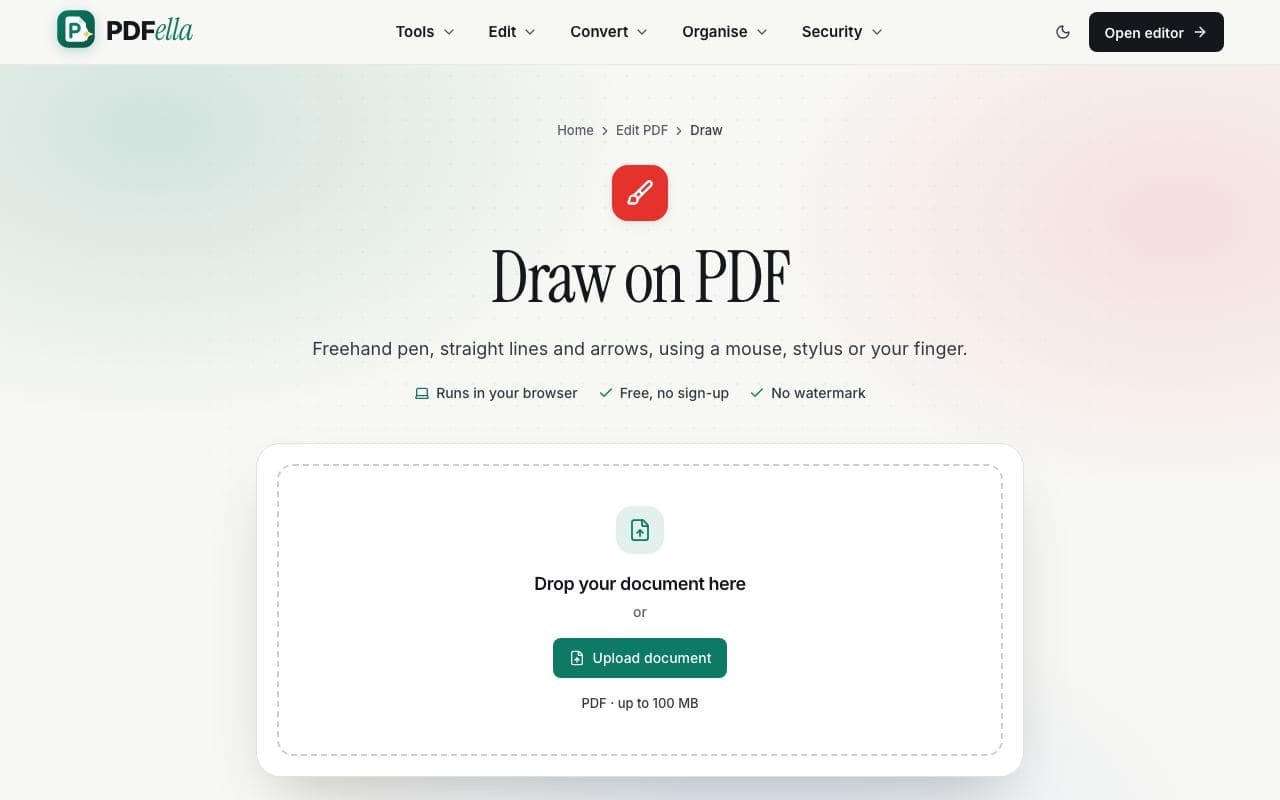
    Upload your PDF

    Drag your PDF onto the upload area, or click Upload document and choose it from your computer or phone. It opens instantly in the editor. No account and no installation needed.

    How to draw on a PDF: step 1, upload your pdf in PDFella
  2. 2

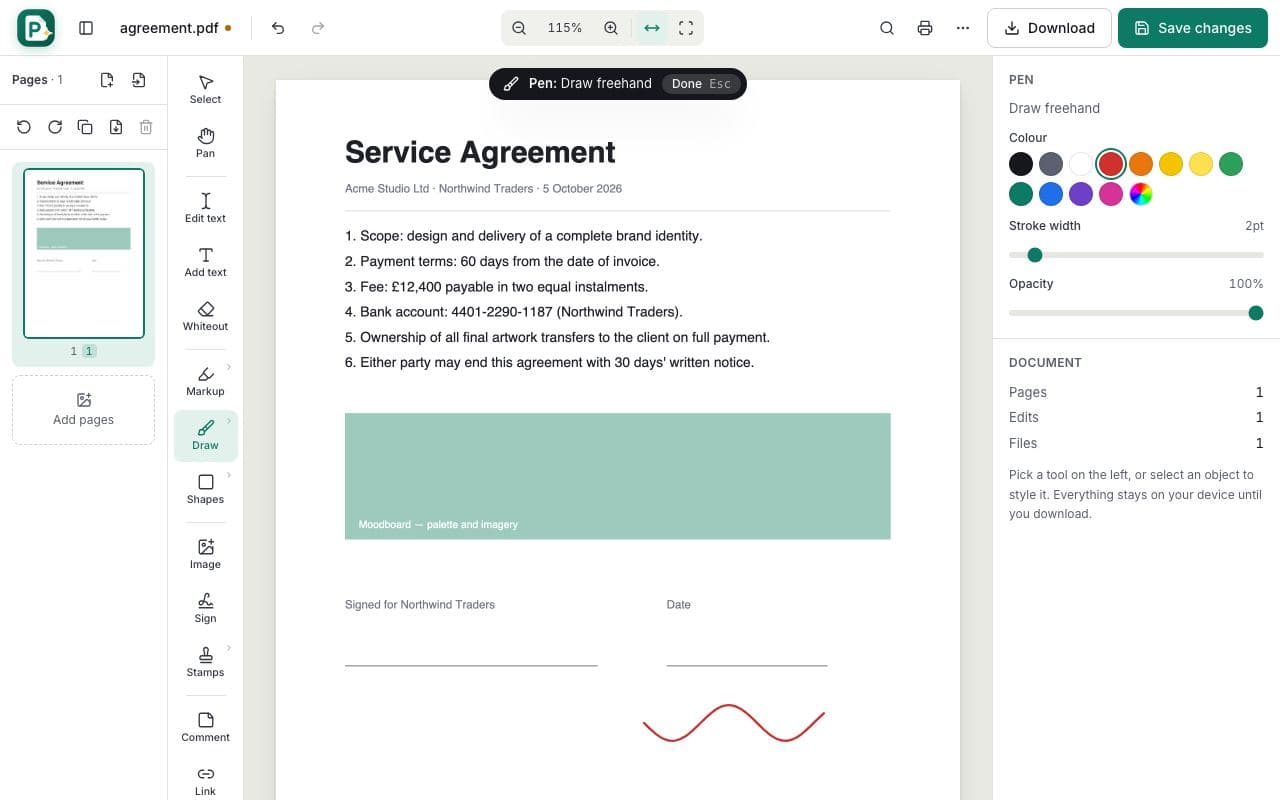
    Pick the Pen

    Open the Draw group and choose Pen (shortcut P). Set colour, stroke width and opacity in the side panel.

    How to draw on a PDF: step 2, pick the pen in PDFella
  3. 3

    Draw on the page

    Drag to draw. Strokes are smoothed automatically. Use the Eraser to remove drawings, or Shapes → Line / Arrow for straight lines (hold Shift to snap to 45°).

  4. 4

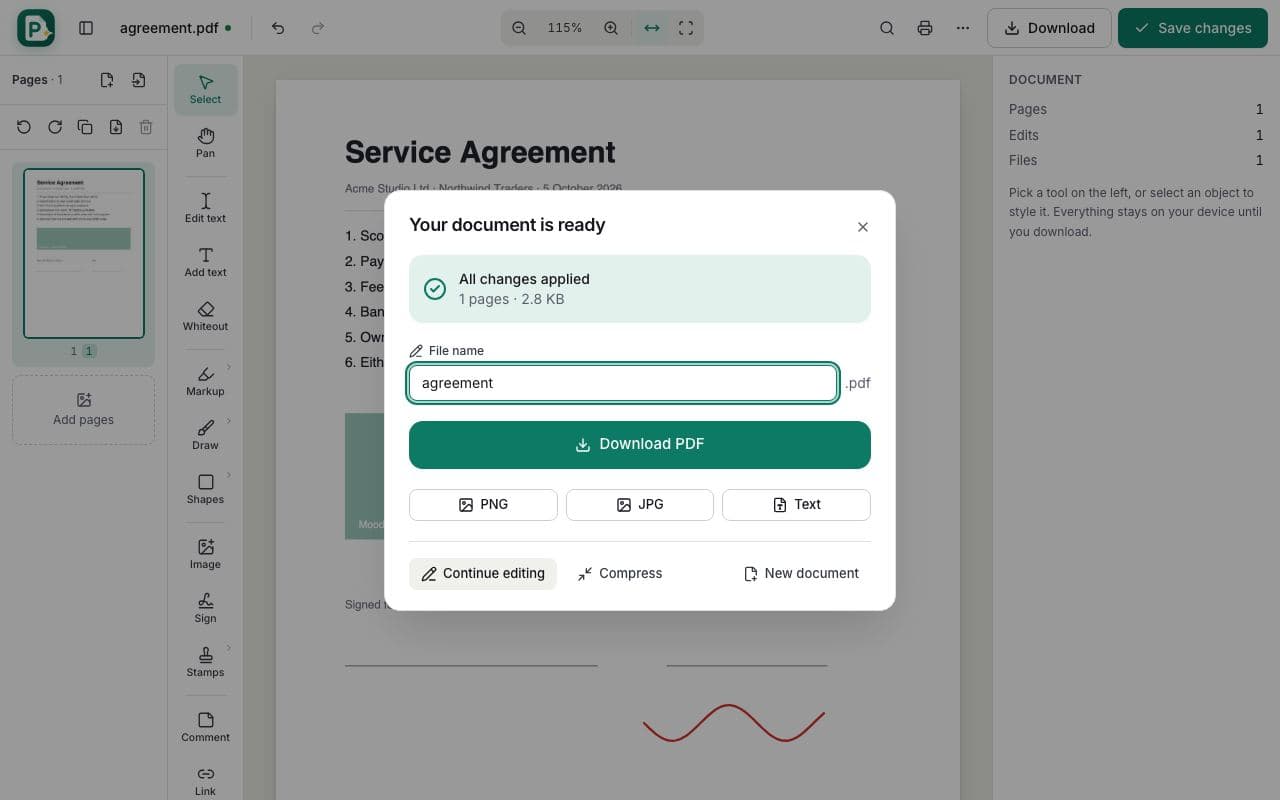
    Save and download

    Click Save changes, then Download PDF. Drawings are saved as crisp vector lines.

    How to draw on a PDF: step 4, save and download in PDFella

Why PDFella

Draw, done right

  • Smooth strokes

    Freehand lines are smoothed so handwriting and sketches look clean.

  • Vector output

    Drawings stay sharp at any zoom level and print perfectly.

  • Touch & stylus

    Draw with Apple Pencil, a stylus or your finger on tablets and phones.

  • Object eraser

    Remove whole strokes with one swipe of the eraser.

Drawing with a tablet or phone

On touch devices the tool bar moves to the bottom of the screen and drawing follows your finger or stylus. Pinch to zoom in for detail.

Lines, arrows and shapes

For diagrams and callouts, the Shapes group adds straight lines, arrows, rectangles, ellipses, polygons and clouds, each with its own stroke and fill colour.

Who uses Draw?

  • Designers

    Mark up proofs with sketches and arrows.

  • Teachers

    Correct homework by hand on a tablet.

  • Engineers

    Annotate drawings and plans during review.

FAQ

Draw: frequently asked questions

Still stuck? Email support@pdfella.example.

Can I draw on a PDF with my finger?

Yes. On phones and tablets the pen follows your finger or stylus.

How do I draw straight lines?

Use Shapes → Line or Arrow and hold Shift to snap to 45°.

Can I erase drawings?

Yes. Use the Eraser and swipe across strokes to remove them.

Is it free?

Yes. Drawing on PDFs is free with no account.

Are drawings saved as images?

No. They're saved as vector lines, so they stay sharp at any zoom.

Is my file uploaded?

No. Everything happens in your browser.

Ready to draw on a PDF?

Free, private and done in seconds. No account needed.

Start now