Skip to content

Add shapes to a PDF

Rectangles, ellipses, lines, arrows, polygons and revision clouds, with your own colours.

  • Runs in your browser
  • Free, no sign-up
  • No watermark

Quick answer

How to add shapes to a PDF?

To add shapes to a PDF, open it in PDFella, open the Shapes menu and choose Rectangle, Ellipse, Line, Arrow, Polygon or Cloud, then drag on the page. Set stroke, fill and opacity in the side panel, then save and download.

Updated 5 October 2026 by the PDFella team

Key facts

Price
Free
Account
Not required
Processing
In your browser. Files aren't uploaded
Input
PDF
Output
PDF
Max file size
100 MB
Works on
Windows, macOS, Linux, iPhone, Android
Watermark
None

Step by step

How to add shapes to a PDF

  1. 1

    Upload your PDF

    Drag your PDF onto the upload area, or click Upload document and choose it from your computer or phone. It opens instantly in the editor. No account and no installation needed.

    How to add shapes to a PDF: step 1, upload your pdf in PDFella
  2. 2

    Open Shapes and pick one

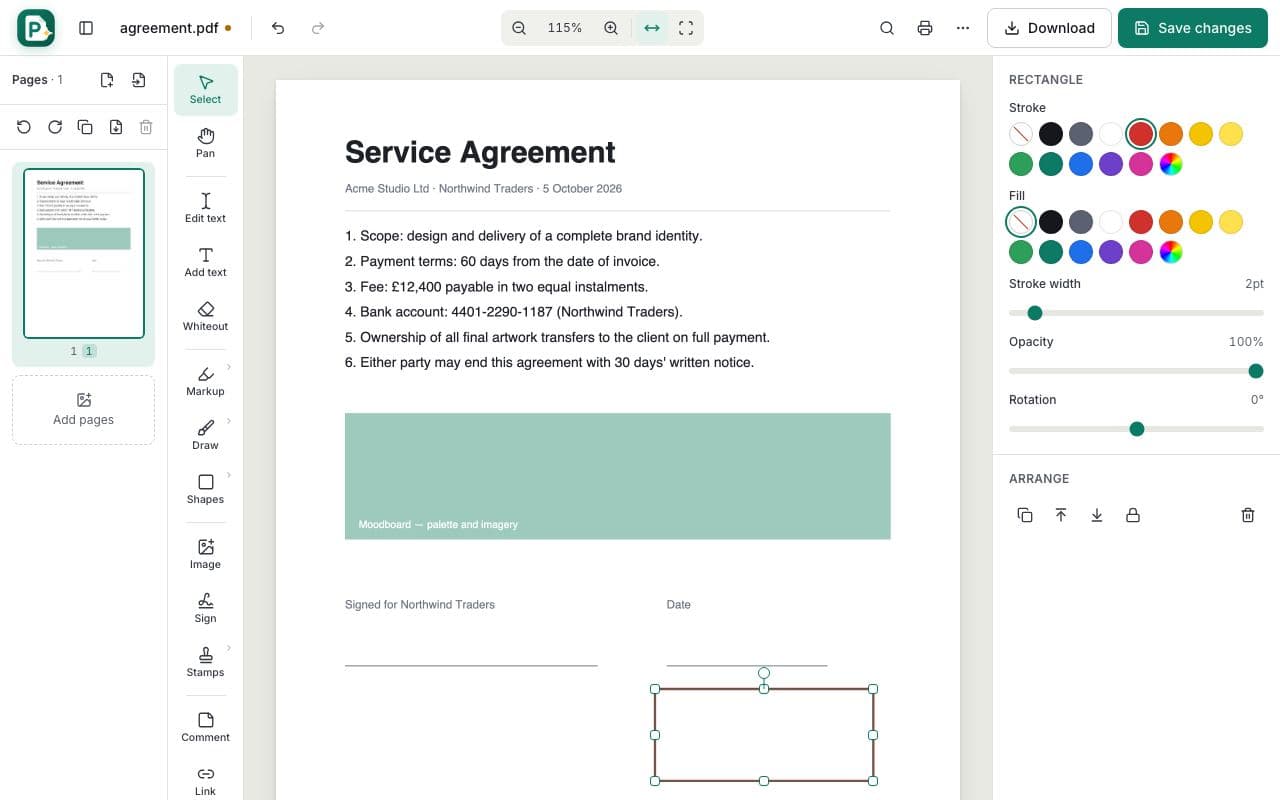
    Click Shapes in the tool bar and choose a rectangle, ellipse, line, arrow, polygon or cloud.

    How to add shapes to a PDF: step 2, open shapes and pick one in PDFella
  3. 3

    Drag to draw and style it

    Drag on the page to draw. Hold Shift for perfect squares and circles. Set stroke colour, fill, thickness and opacity on the right.

  4. 4

    Save and download

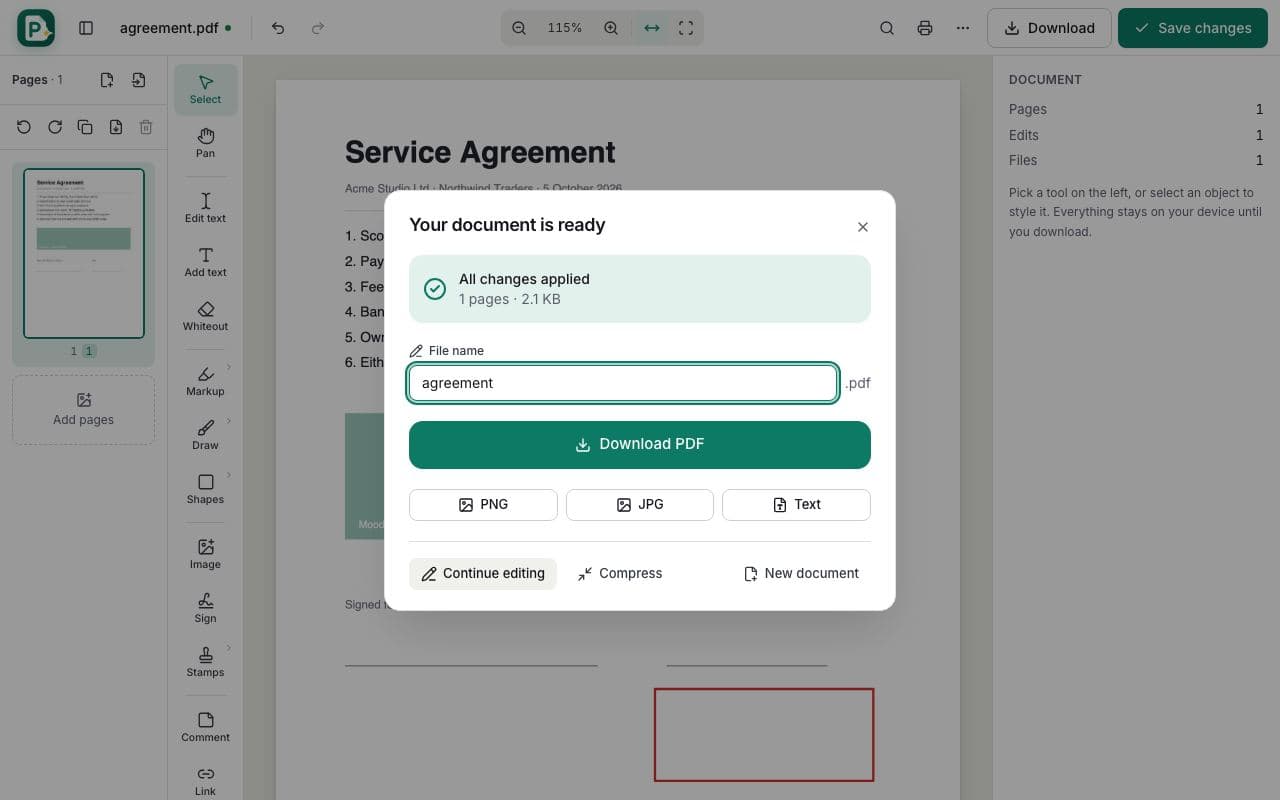
    Click Save changes, then Download PDF.

    How to add shapes to a PDF: step 4, save and download in PDFella

Why PDFella

Add Shapes, done right

  • Six shape types

    Rectangle, ellipse, line, arrow, polygon and cloud.

  • Fill & stroke

    Any colours, thickness and transparency.

  • Rotate & resize

    Every shape can be moved, resized and rotated.

  • Vector quality

    Shapes stay crisp at every zoom level.

Using shapes for clear feedback

Boxes and circles draw the eye to a specific area, arrows connect a comment to what it refers to, and clouds are the standard way to mark revisions on drawings. Combine them with sticky-note comments for complete feedback.

Who uses Add Shapes?

  • Architects & engineers

    Mark revisions on plans with cloud shapes.

  • Teachers

    Circle mistakes and draw arrows to corrections.

  • Product teams

    Annotate screenshots and specs.

FAQ

Add Shapes: frequently asked questions

Still stuck? Email support@pdfella.example.

Can I draw a perfect circle?

Yes. Choose Ellipse and hold Shift while dragging.

Can I fill a shape with colour?

Yes. Choose any fill colour or none.

Can I rotate shapes?

Yes. Use the rotate handle above a selected shape.

Is it free?

Yes, with no account.

Is my file uploaded?

No. Shapes are added in your browser.

Will shapes look sharp when printed?

Yes. They're saved as vector graphics.

Ready to add shapes to a PDF?

Free, private and done in seconds. No account needed.

Start now