Skip to content

Merge PDF files

Combine multiple PDFs into one document in the order you choose, right in your browser.

  • Runs in your browser
  • Free, no sign-up
  • No watermark

Quick answer

How to merge PDF files?

To merge PDF files, open PDFella's Merge PDF tool, add two or more PDFs, drag them into the order you want and click Merge PDFs. Download the combined PDF. Merging runs in your browser, so your files are never uploaded.

Updated 5 October 2026 by the PDFella team

Key facts

Price
Free
Account
Not required
Processing
In your browser. Files aren't uploaded
Input
PDF
Output
PDF
Max file size
100 MB
Works on
Windows, macOS, Linux, iPhone, Android
Watermark
None

Step by step

How to merge PDF files

  1. 1

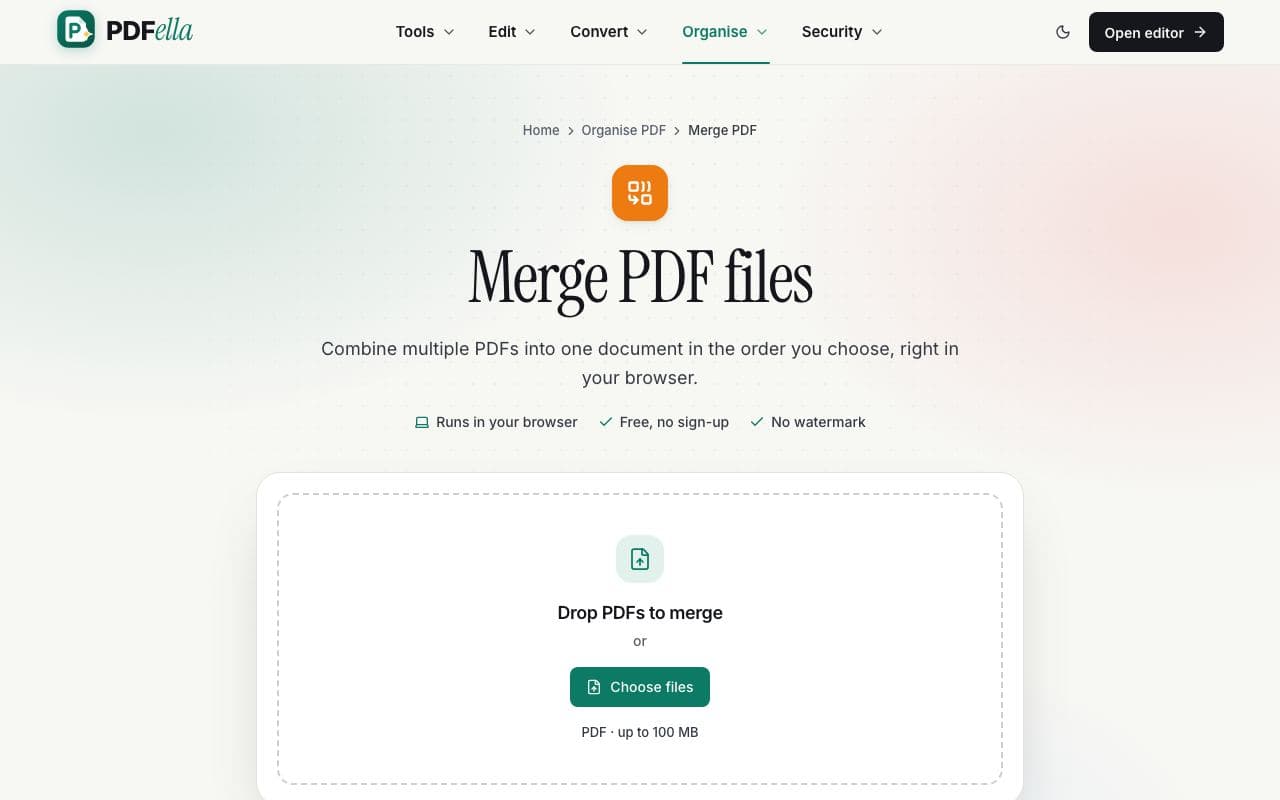
    Upload the PDFs you want to combine

    Drag the PDFs you want to combine onto the upload area or click Choose file. It opens in your browser straight away. Nothing is uploaded to a server.

    How to merge PDF files: step 1, upload the pdfs you want to combine in PDFella
  2. 2

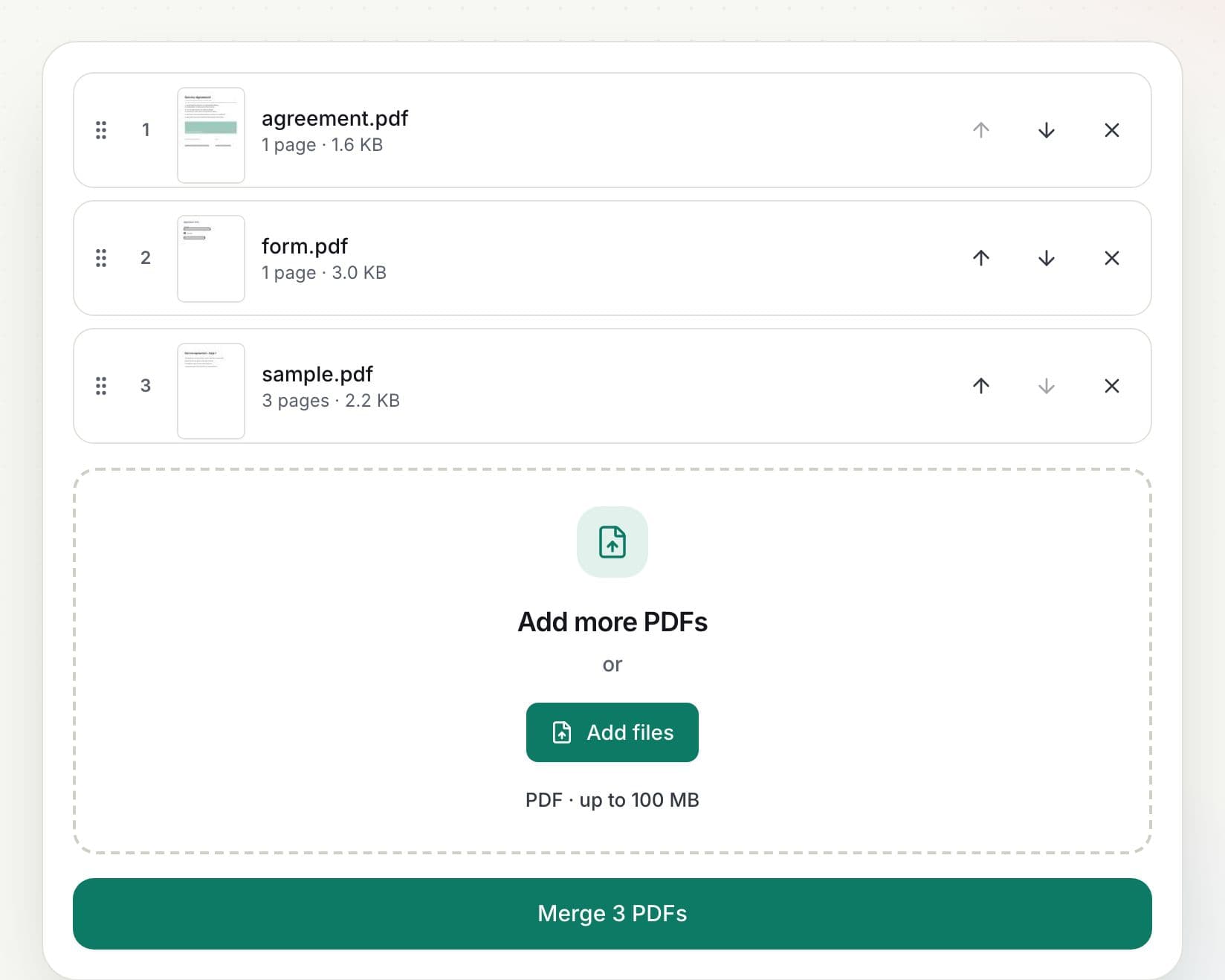
    Put the files in order

    Each file shows its first page, page count and size. Drag files to reorder them, use the arrows to move one up or down, remove any you don't need, or add more PDFs.

    How to merge PDF files: step 2, put the files in order in PDFella
  3. 3

    Click Merge PDFs

    Your files are combined into a single PDF in the order shown, with every page kept exactly as it was.

  4. 4

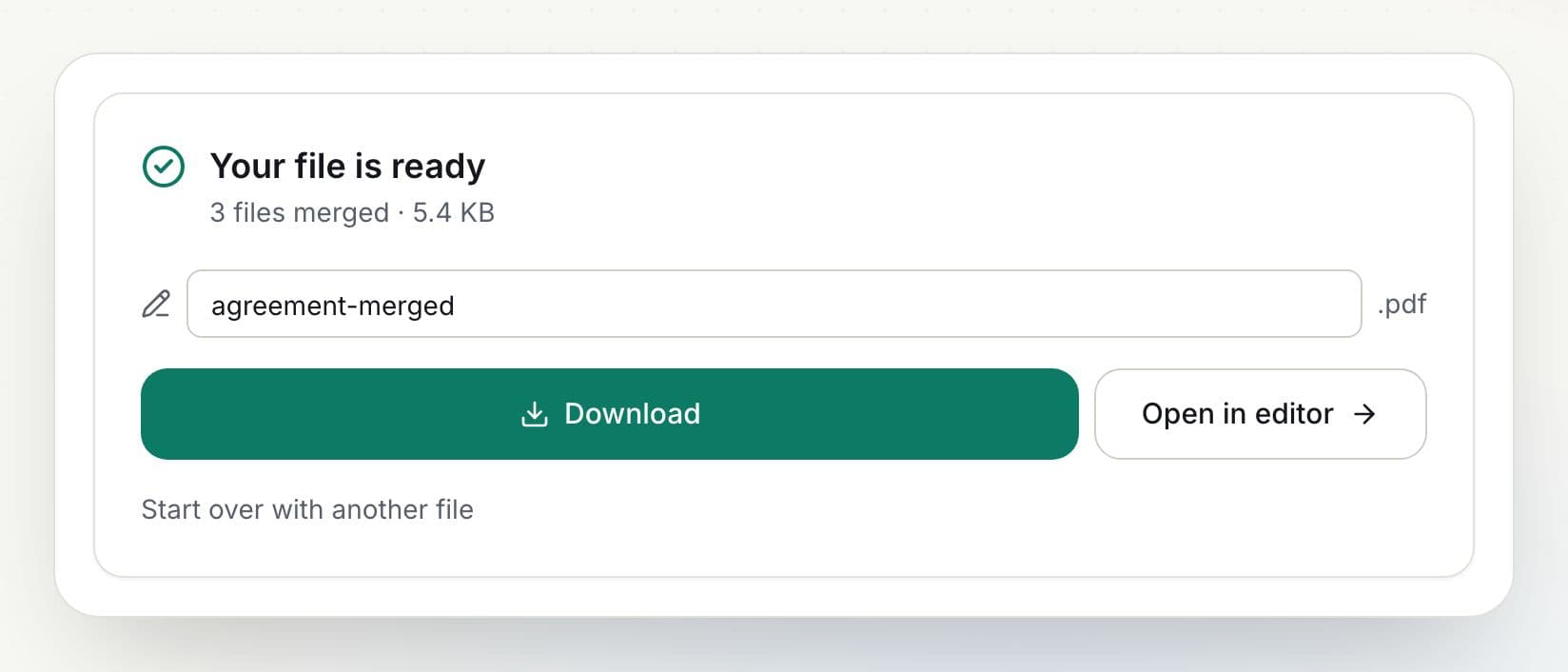
    Download the result

    Rename the file if you like and click Download. You can also open the result in the editor to keep working on it.

    How to merge PDF files: step 4, download the result in PDFella

Why PDFella

Merge PDF, done right

  • Drag-and-drop order

    Preview each file and arrange them exactly how you want before merging.

  • Runs in your browser

    Your files never leave your device, which keeps confidential documents private and makes processing fast.

  • Keeps quality

    Pages are copied as they are, so text stays selectable and images aren't recompressed.

  • Protected PDFs welcome

    Restricted PDFs are unlocked automatically; password-protected ones ask for the password once.

How to combine PDFs in a specific order

The order of the list is the order of the merged document. If you need to interleave pages from different files, merge them first, then open the result in the editor and drag page thumbnails into the exact order you want.

Merging PDFs with other file types

To merge images or Office files with PDFs, convert them first with JPG to PDF or Word to PDF, then merge. Or open a PDF in the editor and use Add pages to insert PDFs and images at any position.

Who uses Merge PDF?

  • Job seekers

    Combine a CV, cover letter and certificates into one application PDF.

  • Accountants

    Merge monthly statements and receipts into a single file.

  • Students

    Join lecture notes or chapters into one document.

FAQ

Merge PDF: frequently asked questions

Still stuck? Email support@pdfella.example.

How do I merge PDF files for free?

Open Merge PDF, add your files, drag them into order and click Merge PDFs. Then download the combined PDF. It's free with no account.

Is there a limit on how many PDFs I can merge?

You can merge up to 20 files at once, each up to 100 MB.

Are my files uploaded?

No. Merging happens entirely in your browser.

Can I change the order of the files?

Yes. Drag the files or use the up and down arrows before merging.

Will the merged PDF lose quality?

No. Pages are copied as they are, without recompression.

Can I merge password-protected PDFs?

Yes. Enter the password once if the PDF requires one to open; restriction-only PDFs open automatically.

Can I merge PDFs on my phone?

Yes. The tool works in mobile browsers on iPhone and Android.

Ready to merge PDF files?

Free, private and done in seconds. No account needed.

Start now