Skip to content

PDF to JPG converter

Turn every page of a PDF into a high-quality JPG image, at the resolution you choose.

  • Runs in your browser
  • Free, no sign-up
  • No watermark

Quick answer

How to convert PDF to JPG?

To convert PDF to JPG, open PDFella's PDF to JPG converter, upload your PDF, choose a resolution (150 DPI is standard, 300 DPI for print) and optionally a page range, then click Convert to JPG. Download a single image or a ZIP with one JPG per page.

Updated 5 October 2026 by the PDFella team

Key facts

Price
Free
Account
Not required
Processing
In your browser. Files aren't uploaded
Input
PDF
Output
JPG
Max file size
100 MB
Works on
Windows, macOS, Linux, iPhone, Android
Watermark
None

Step by step

How to convert PDF to JPG

  1. 1

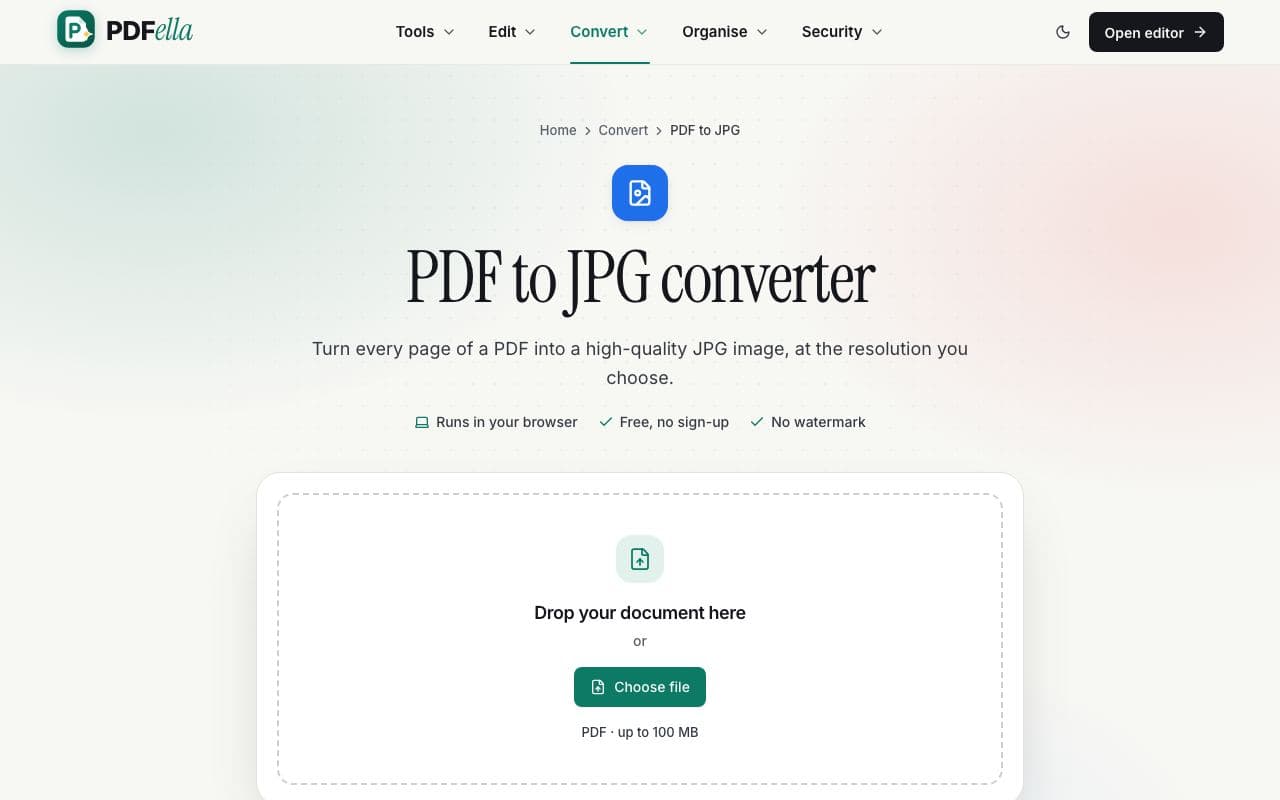
    Upload your PDF

    Drag your PDF onto the upload area or click Choose file. It's read in your browser. Nothing is uploaded.

    How to convert PDF to JPG: step 1, upload your pdf in PDFella
  2. 2

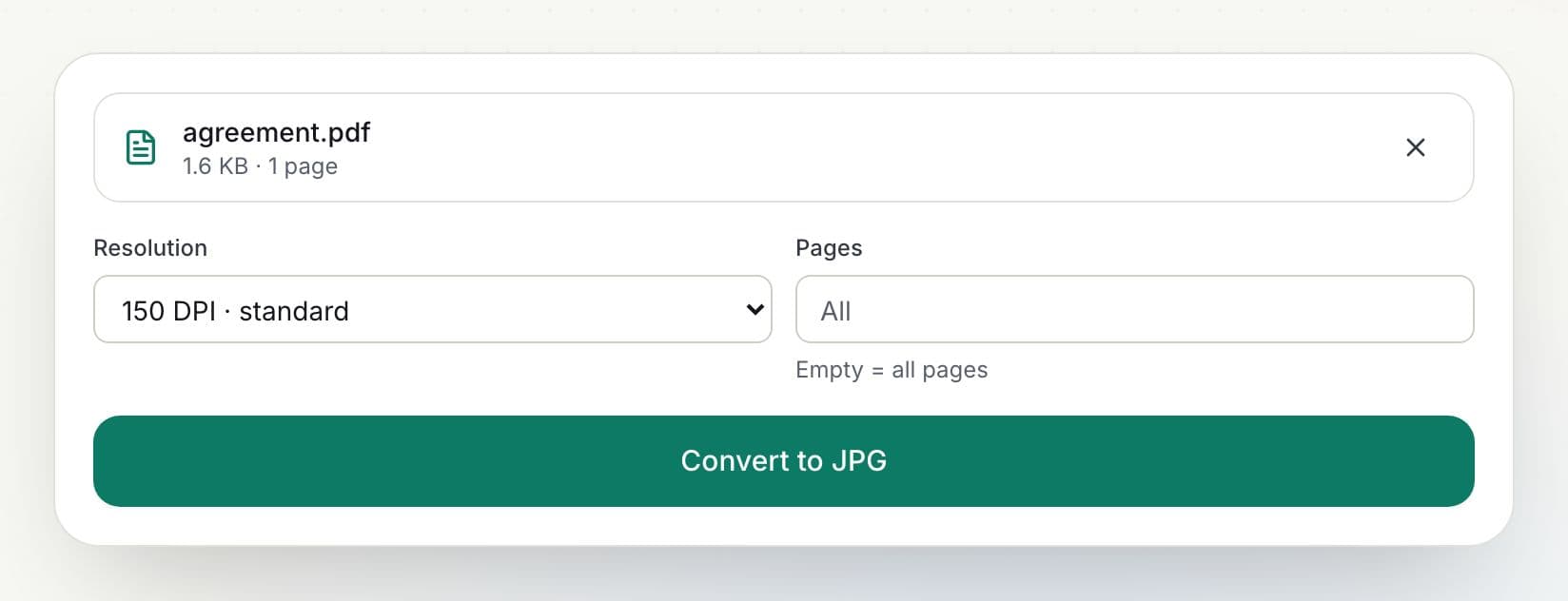
    Choose resolution and pages

    Pick 72 DPI for screens, 150 DPI for most uses, 220 DPI for high quality or 300 DPI for print. Leave Pages empty for all pages or enter a range.

    How to convert PDF to JPG: step 2, choose resolution and pages in PDFella
  3. 3

    Click Convert to JPG

    Each page is rendered to a JPG with live progress.

  4. 4

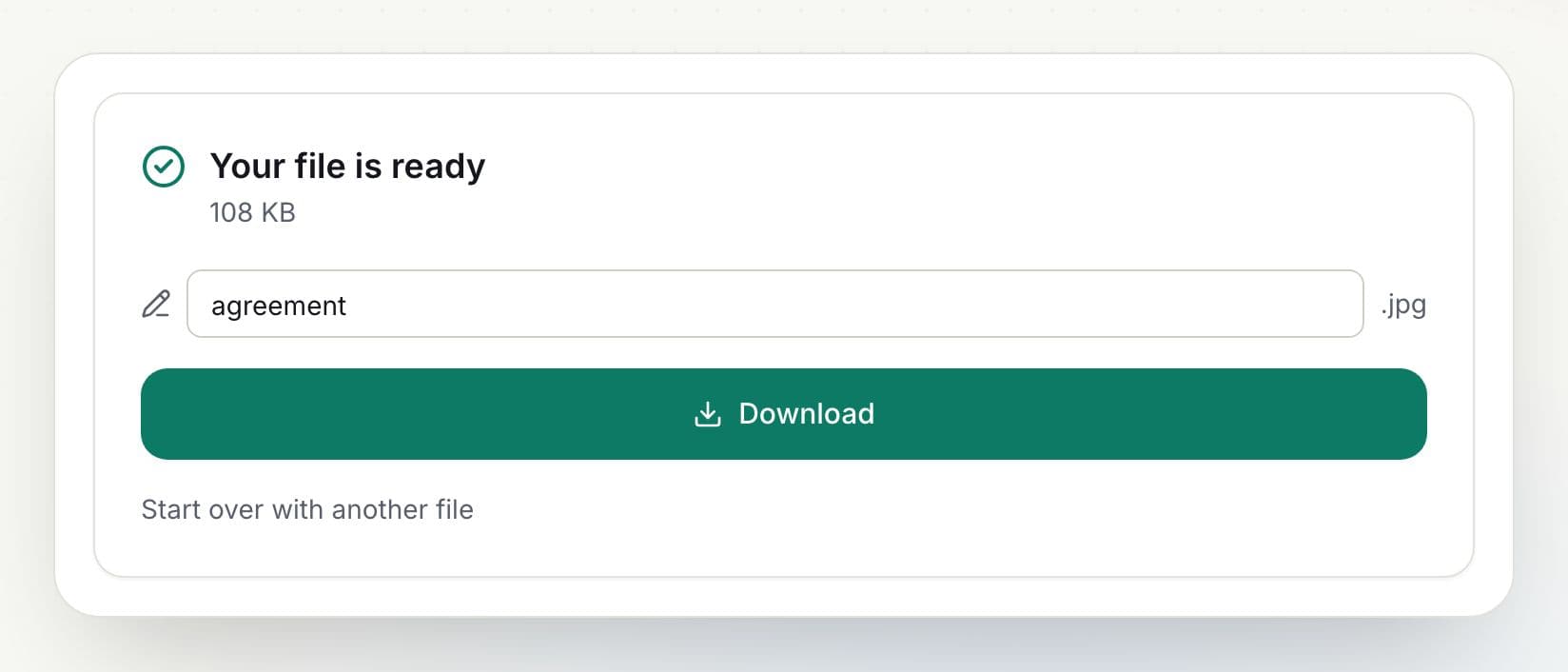
    Download your images

    Rename the file if you like and click Download. The result is ready in seconds.

    How to convert PDF to JPG: step 4, download your images in PDFella

Why PDFella

PDF to JPG, done right

  • Up to 300 DPI

    Print-quality images when you need them.

  • Choose pages

    Convert all pages or just a range.

  • Converted in your browser

    Your file never leaves your device, so conversion is private and fast.

  • ZIP for many pages

    Multiple pages download together in one ZIP.

Which resolution should I choose?

150 DPI is a good balance for sharing and presentations. Use 72 DPI for small web images, and 220–300 DPI when you need to print or zoom in on detail. Higher resolutions produce larger files.

JPG or PNG?

JPG files are smaller and ideal for photos and scanned pages. Choose PDF to PNG for lossless images with sharp text and graphics, such as diagrams or screenshots.

Who uses PDF to JPG?

  • Social media managers

    Share a PDF page as an image on social platforms.

  • Presenters

    Drop PDF pages into slides as pictures.

  • Web editors

    Create preview images of documents.

FAQ

PDF to JPG: frequently asked questions

Still stuck? Email support@pdfella.example.

How do I convert a PDF to JPG for free?

Upload the PDF to PDF to JPG, choose a resolution and click Convert to JPG. Download the image or ZIP. No account needed.

Can I convert only some pages?

Yes. Enter a page range such as 1-3.

What resolution are the images?

Choose 72, 150, 220 or 300 DPI.

Is my PDF uploaded?

No. Pages are rendered in your browser.

How do I get all pages?

Multiple pages download as a ZIP with one JPG per page.

Is there a watermark?

No.

Ready to convert PDF to JPG?

Free, private and done in seconds. No account needed.

Start now