Skip to content

OCR PDF: make scanned PDFs searchable

Recognise the text in scanned PDFs so you can search, select and copy it, while the pages look exactly the same.

  • Secure cloud · deleted within 60 min
  • Free, no sign-up
  • No watermark

Quick answer

How to OCR a PDF?

To make a scanned PDF searchable, open PDFella's OCR PDF tool, upload the scan, choose the document language and click OCR PDF. Text is recognised and added as an invisible layer behind each page image, so you can search, select and copy it. Download the searchable PDF.

Updated 5 October 2026 by the PDFella team

Key facts

Price
Free
Account
Not required
Processing
Secure cloud. Files deleted within 60 minutes
Input
PDF
Output
PDF
Max file size
100 MB
Works on
Windows, macOS, Linux, iPhone, Android
Watermark
None

Step by step

How to OCR a PDF

  1. 1

    Upload your PDF

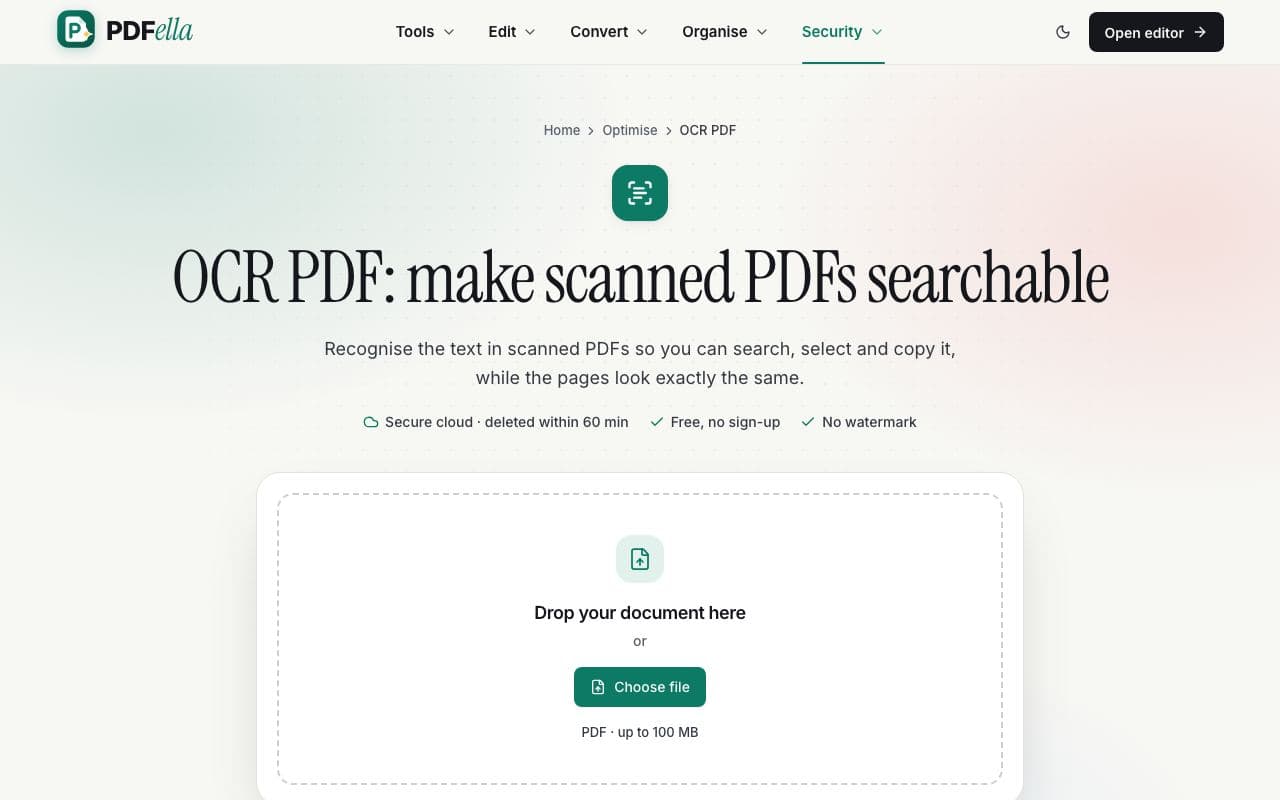
    Drag your PDF onto the upload area or click Choose file. It's sent over an encrypted connection to private, temporary storage for processing.

    How to OCR a PDF: step 1, upload your pdf in PDFella
  2. 2

    Choose the language

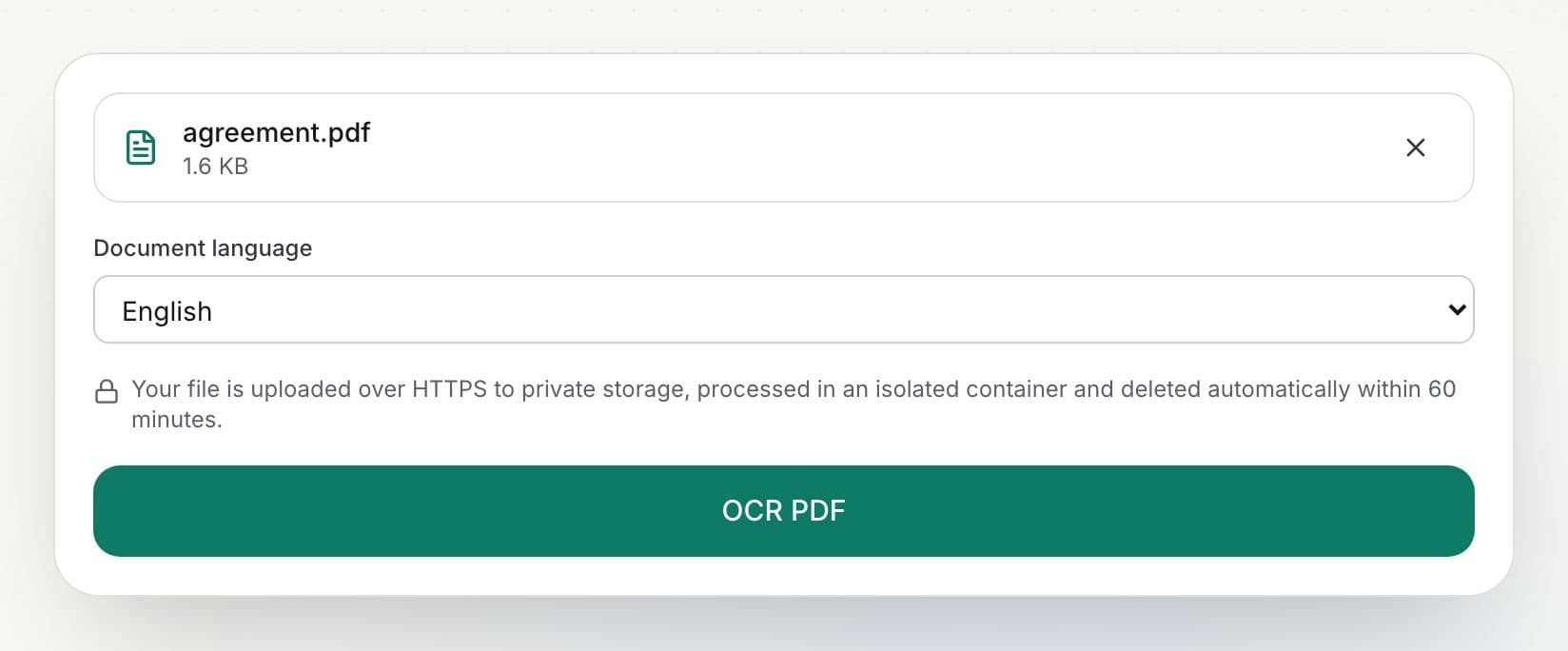
    Pick the language of the document for the most accurate recognition, then click OCR PDF. Progress is shown as a percentage.

    How to OCR a PDF: step 2, choose the language in PDFella
  3. 3

    Download the result

    Rename the file if you like and click Download, or open it in the editor to keep working.

Why PDFella

OCR PDF, done right

  • Searchable & selectable

    Find words with Ctrl/⌘ + F and copy text.

  • Looks identical

    The original scan stays visible; text is added behind it.

  • Straightens pages

    Pages are deskewed and auto-rotated.

  • Secure cloud processing

    Processed in an isolated container and deleted automatically, within 60 minutes at most.

What is OCR?

Optical character recognition (OCR) turns pictures of text, like scanned pages or photos of documents, into real text a computer can read. A scanned PDF without OCR is just a set of images: you can't search it, copy from it or convert it to Word accurately.

Tips for accurate OCR

Scan at 300 DPI where possible, keep pages flat and well lit, and choose the correct language. Clean, high-contrast scans give the best results.

Who uses OCR PDF?

  • Archivists

    Make scanned archives searchable.

  • Lawyers

    Search scanned case bundles for names and dates.

  • Accountants

    Copy figures from scanned invoices.

FAQ

OCR PDF: frequently asked questions

Still stuck? Email support@pdfella.example.

How do I make a scanned PDF searchable?

Upload it to OCR PDF, choose the language and run OCR. The downloaded PDF has a searchable text layer.

Will the PDF look different?

No. The original page images are kept; the text layer is invisible.

Which languages are supported?

English, German, French, Spanish, Italian, Portuguese, Dutch, Hindi, Nepali, Arabic, Chinese (Simplified) and Japanese are available in the tool, and more can be enabled.

Is my file uploaded?

Yes. OCR uses secure cloud processing and files are deleted automatically, within 60 minutes at most.

Can I convert the OCR result to Word?

Yes. Run PDF to Word on the searchable PDF.

Is it free?

Yes, within the daily allowance for cloud tools.

Ready to OCR a PDF?

Free, private and done in seconds. No account needed.

Start now