Skip to content

Add a header and footer to a PDF

Put text, page numbers, the date or the document name at the top and bottom of every page.

  • Runs in your browser
  • Free, no sign-up
  • No watermark

Quick answer

How to add a header and footer to a PDF?

To add a header and footer to a PDF, open PDFella's Header & Footer tool, upload the file and type into the left, centre and right boxes for the header and footer. Use {page}, {pages}, {date} and {name} for automatic values, then click Apply and download.

Updated 5 October 2026 by the PDFella team

Key facts

Price
Free
Account
Not required
Processing
In your browser. Files aren't uploaded
Input
PDF
Output
PDF
Max file size
100 MB
Works on
Windows, macOS, Linux, iPhone, Android
Watermark
None

Step by step

How to add a header and footer to a PDF

  1. 1

    Upload your PDF

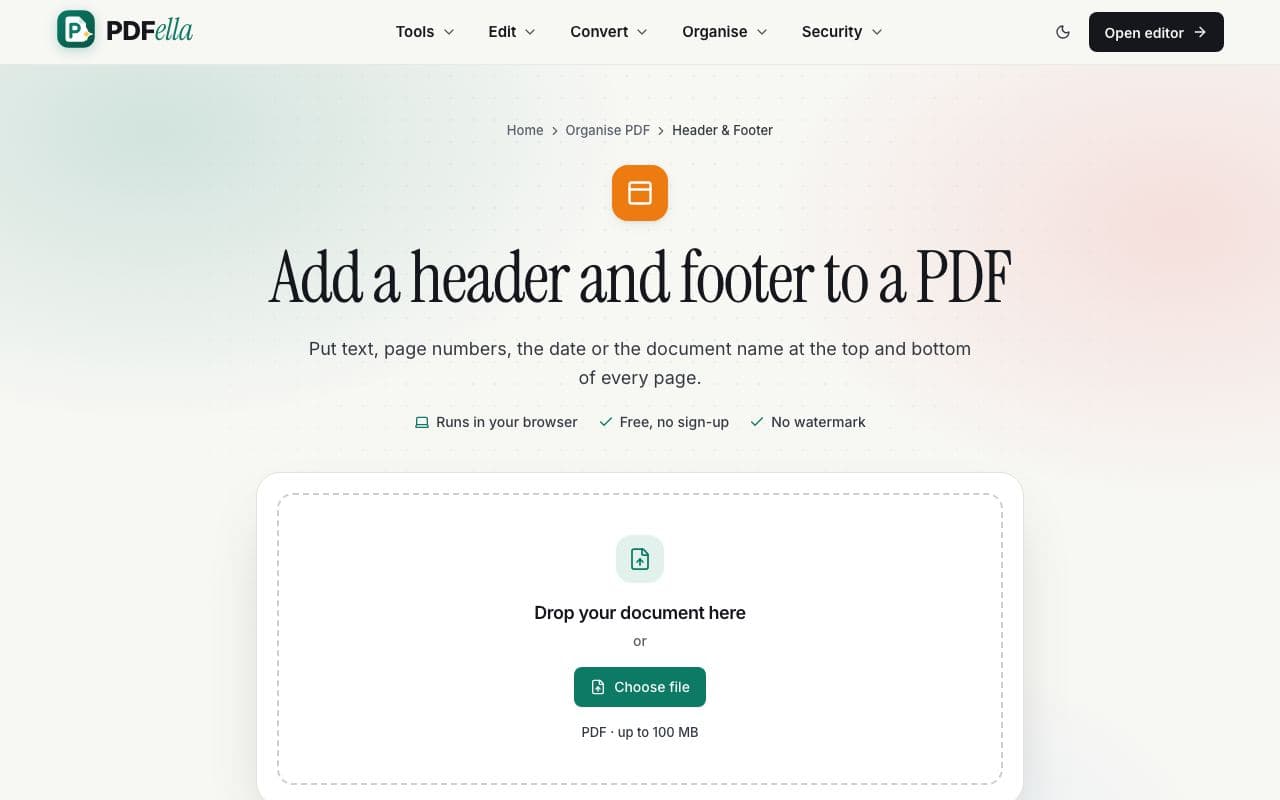
    Drag your PDF onto the upload area or click Choose file. It opens in your browser straight away. Nothing is uploaded to a server.

    How to add a header and footer to a PDF: step 1, upload your pdf in PDFella
  2. 2

    Type your header and footer

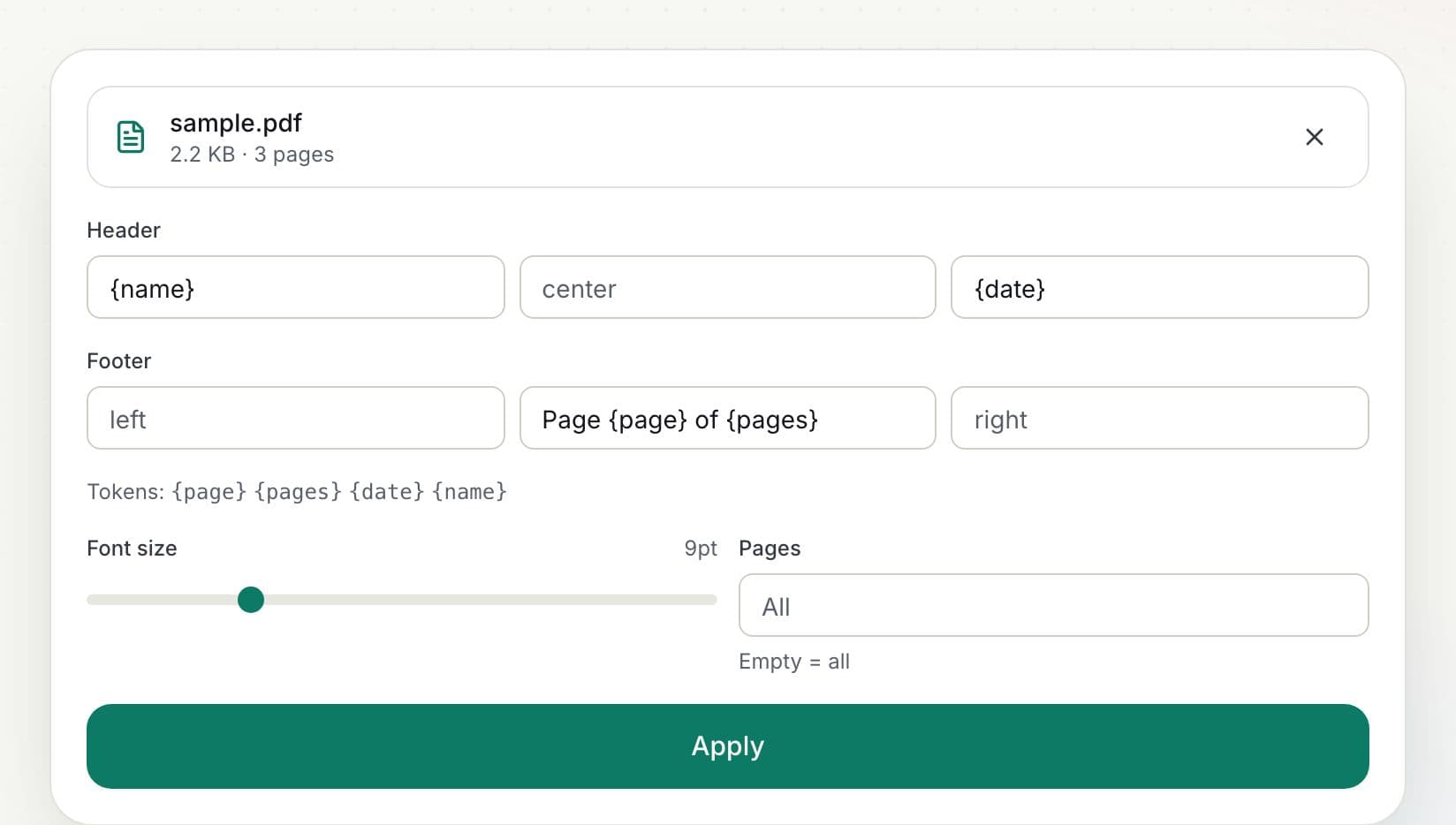
    Fill in any of the six boxes (left, centre, right for header and footer). Tokens {page}, {pages}, {date} and {name} are replaced automatically on each page.

    How to add a header and footer to a PDF: step 2, type your header and footer in PDFella
  3. 3

    Click Apply

    Choose the font size and optional page range, then apply. Text is added as real, searchable text.

  4. 4

    Download the result

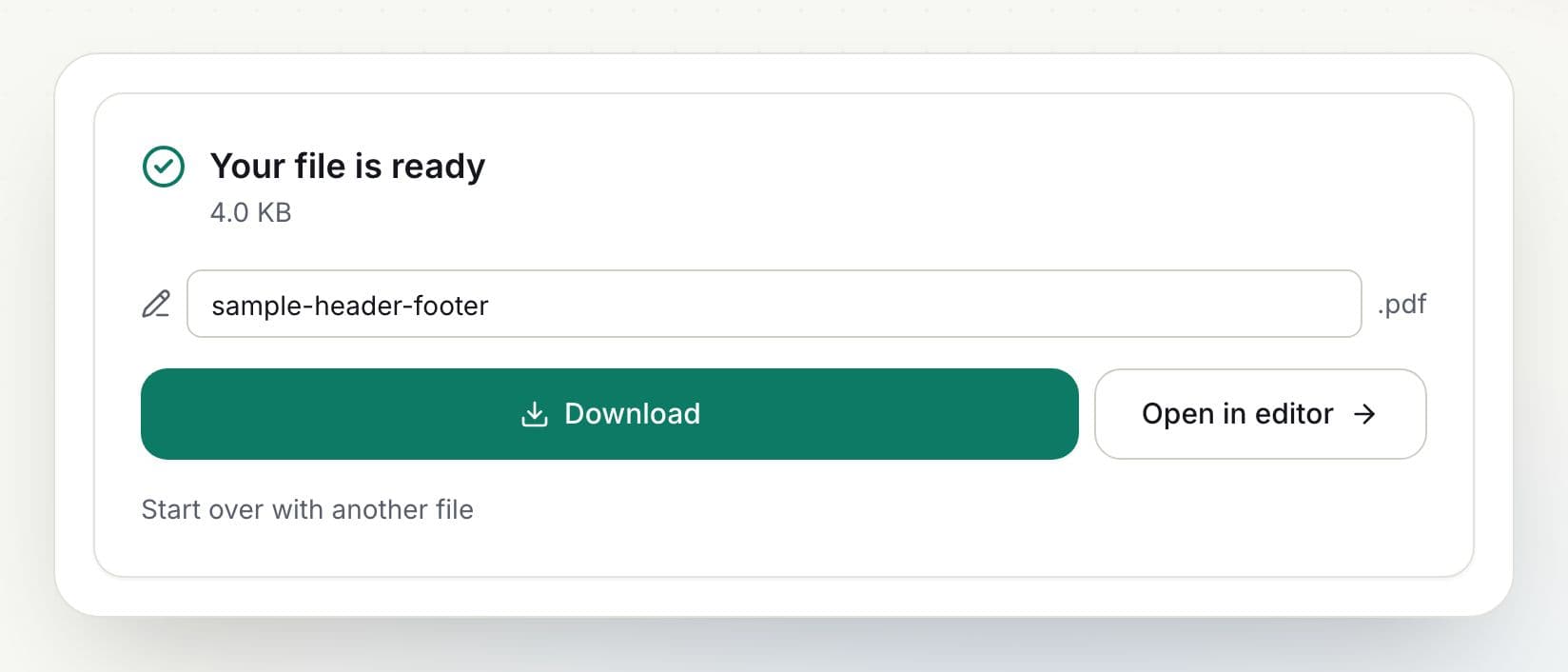
    Rename the file if you like and click Download. You can also open the result in the editor to keep working on it.

    How to add a header and footer to a PDF: step 4, download the result in PDFella

Why PDFella

Header & Footer, done right

  • Smart tokens

    Page number, total pages, today's date and file name.

  • Six slots

    Left, centre and right in both header and footer.

  • Page ranges

    Apply to all pages or only some.

  • Runs in your browser

    Your files never leave your device, which keeps confidential documents private and makes processing fast.

Example header and footer

A common setup is the document name on the top left, the date on the top right, and 'Page {page} of {pages}' centred in the footer. That's the default, so most people can click Apply straight away.

Who uses Header & Footer?

  • Consultants

    Brand reports with the client name and date.

  • Legal teams

    Mark documents as drafts with the date on every page.

  • Students

    Add their name and page numbers to coursework.

FAQ

Header & Footer: frequently asked questions

Still stuck? Email support@pdfella.example.

Can I add the date to every page?

Yes. Type {date} into any header or footer box.

Can I add page numbers too?

Yes. Use {page} and {pages}, e.g. Page {page} of {pages}.

Is my file uploaded?

No. Everything runs in your browser.

Is it free?

Yes, with no account.

Can I choose which pages get a header?

Yes. Enter a page range in the Pages box.

Is the header text searchable?

Yes. It's written into the PDF as real text.

Ready to add a header and footer to a PDF?

Free, private and done in seconds. No account needed.

Start now