Skip to content

Redact PDF

Permanently remove sensitive text and images: redacted content is deleted from the file, not just hidden.

  • Runs in your browser
  • Free, no sign-up
  • No watermark

Quick answer

How to redact a PDF?

To redact a PDF, open it in PDFella, choose Redact and drag across the text or area to remove, or press Ctrl/⌘ + F and mark every match at once. Preview the redactions, then click Save changes. Redacted content is permanently deleted from the downloaded PDF.

Updated 5 October 2026 by the PDFella team

Key facts

Price
Free
Account
Not required
Processing
In your browser. Files aren't uploaded
Input
PDF
Output
PDF
Max file size
100 MB
Works on
Windows, macOS, Linux, iPhone, Android
Watermark
None

Step by step

How to redact a PDF

  1. 1

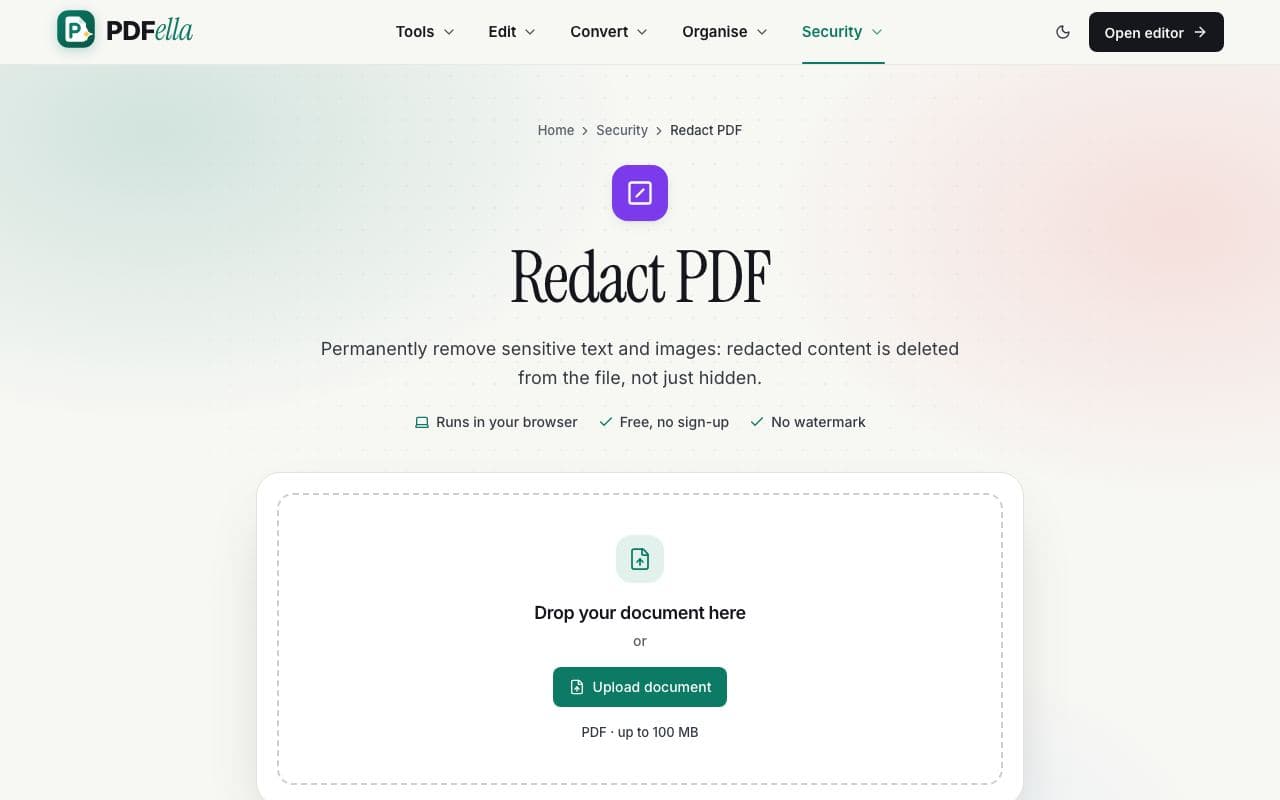
    Upload your PDF

    Drop the PDF onto the upload area. It opens in the editor with the Redact tool selected.

    How to redact a PDF: step 1, upload your pdf in PDFella
  2. 2

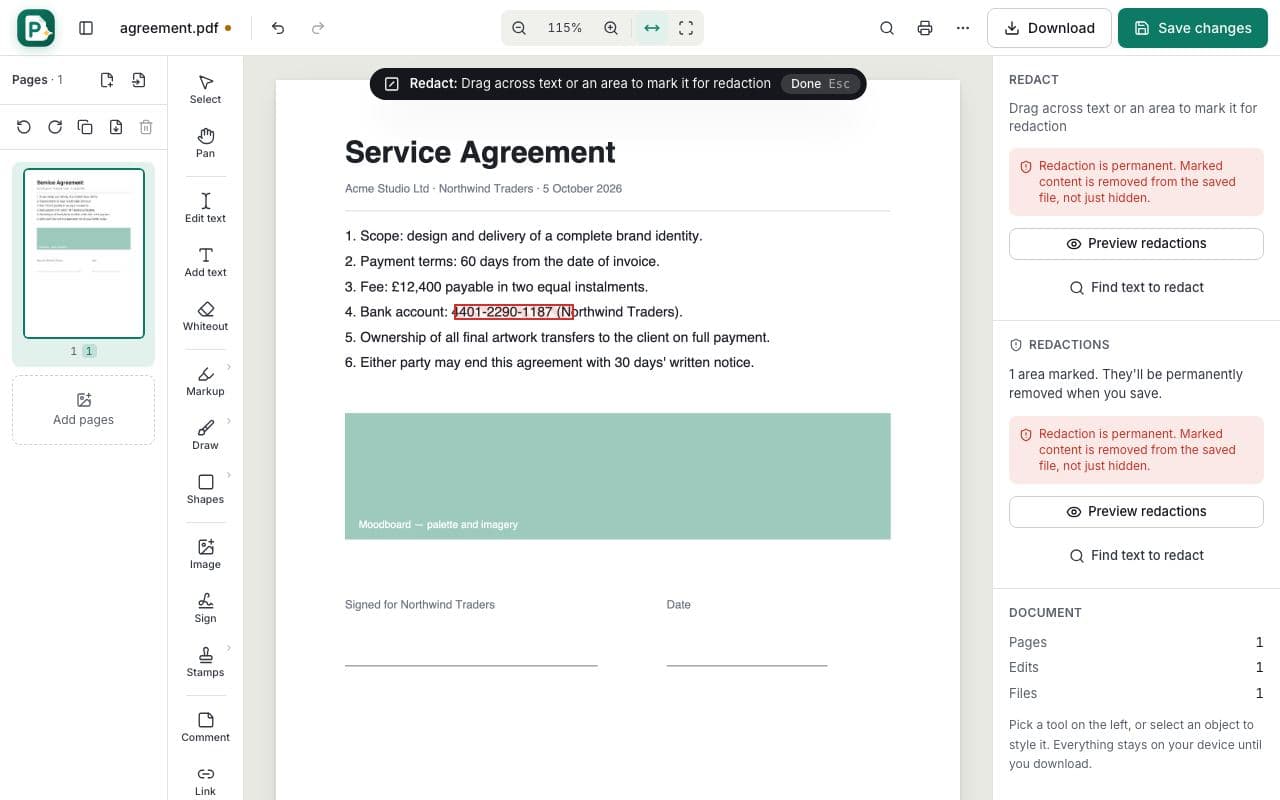
    Mark what to remove

    Drag across text (it snaps to lines) or any area. To redact every occurrence of a word or number, press Ctrl/⌘ + F, search, and click Mark all matches for redaction.

    How to redact a PDF: step 2, mark what to remove in PDFella
  3. 3

    Preview and apply

    Click Preview redactions to see the result, then Save changes. Redacted content is removed from the file.

  4. 4

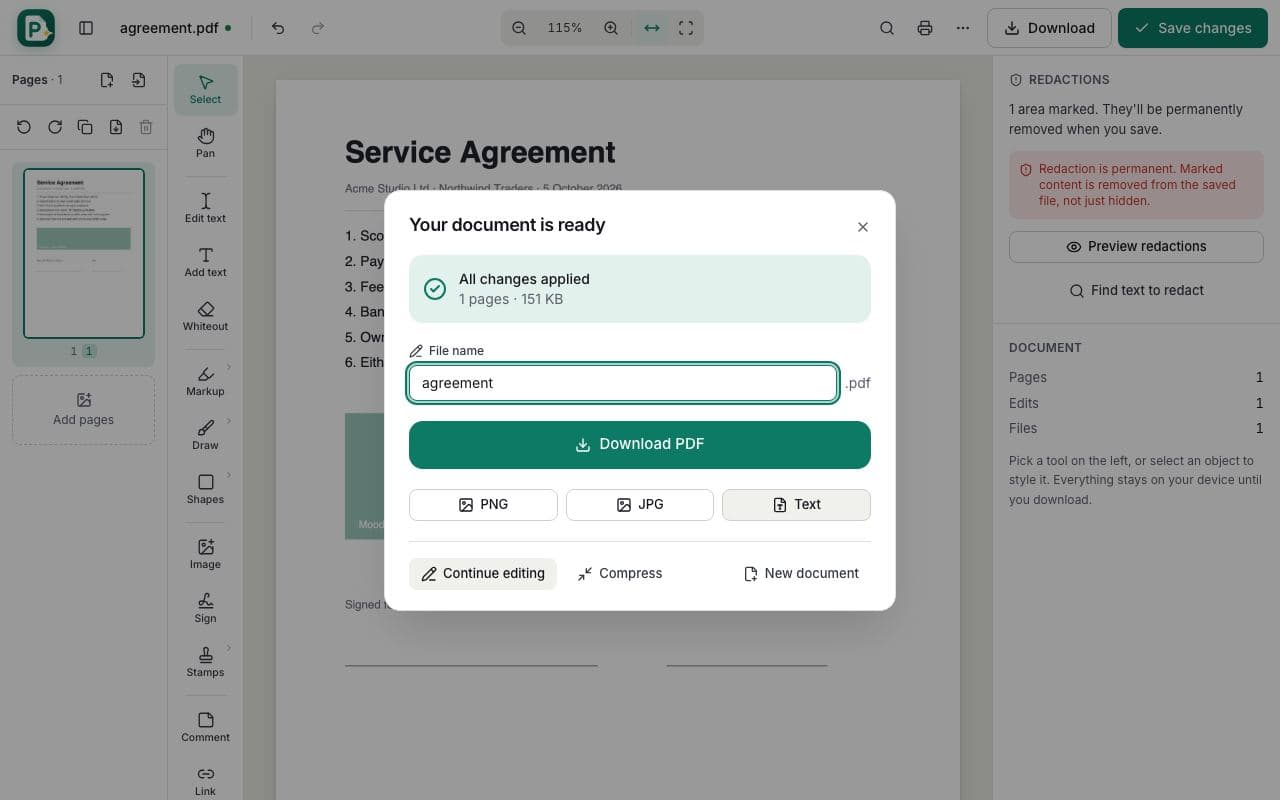
    Save and download

    Click Save changes, then Download PDF.

    How to redact a PDF: step 4, save and download in PDFella

Why PDFella

Redact PDF, done right

  • Truly removed

    Redacted text can't be selected, searched or copied afterwards.

  • Find & redact

    Search and mark every match in one click.

  • Rest stays searchable

    Unredacted text remains searchable.

  • Runs in your browser

    Your PDF never leaves your device.

Why a black box isn't redaction

Drawing a black rectangle over text only hides it visually: the words are still in the file and can be copied out. Proper redaction deletes the underlying content. PDFella rebuilds pages that contain redactions so the removed text and images no longer exist in the PDF, while keeping a searchable text layer for everything you didn't redact.

Checking your redactions

After downloading, open the PDF and try to select or search for the redacted text. It won't be found. Also review the whole document, including headers, footers and attachments, for anything you may have missed.

Who uses Redact PDF?

  • Legal teams

    Redact privileged information before disclosure.

  • HR

    Remove personal data before sharing documents.

  • Public bodies

    Prepare documents for freedom-of-information requests.

FAQ

Redact PDF: frequently asked questions

Still stuck? Email support@pdfella.example.

Is redaction permanent?

Yes. Redacted content is removed from the downloaded file and can't be recovered from it.

Can I redact every occurrence of a word?

Yes. Search with Ctrl/⌘ + F and click Mark all matches for redaction.

Is my PDF uploaded?

No. Redaction runs in your browser by default.

Will the rest of the document stay searchable?

Yes. Text outside redacted areas remains searchable.

Can I change the redaction colour?

Yes. Choose black, white or grey.

Is it free?

Yes, with no account.

Ready to redact a PDF?

Free, private and done in seconds. No account needed.

Start now