Skip to content

Highlight text in a PDF

Highlight, underline or strike through text. Markup snaps neatly to the lines you drag across.

  • Runs in your browser
  • Free, no sign-up
  • No watermark

Quick answer

How to highlight text in a PDF?

To highlight text in a PDF, open it in PDFella, choose Markup then Highlight, and drag across the text. The highlight snaps to each line you cover. Pick a colour in the side panel, then save and download your highlighted PDF.

Updated 5 October 2026 by the PDFella team

Key facts

Price
Free
Account
Not required
Processing
In your browser. Files aren't uploaded
Input
PDF
Output
PDF
Max file size
100 MB
Works on
Windows, macOS, Linux, iPhone, Android
Watermark
None

Step by step

How to highlight text in a PDF

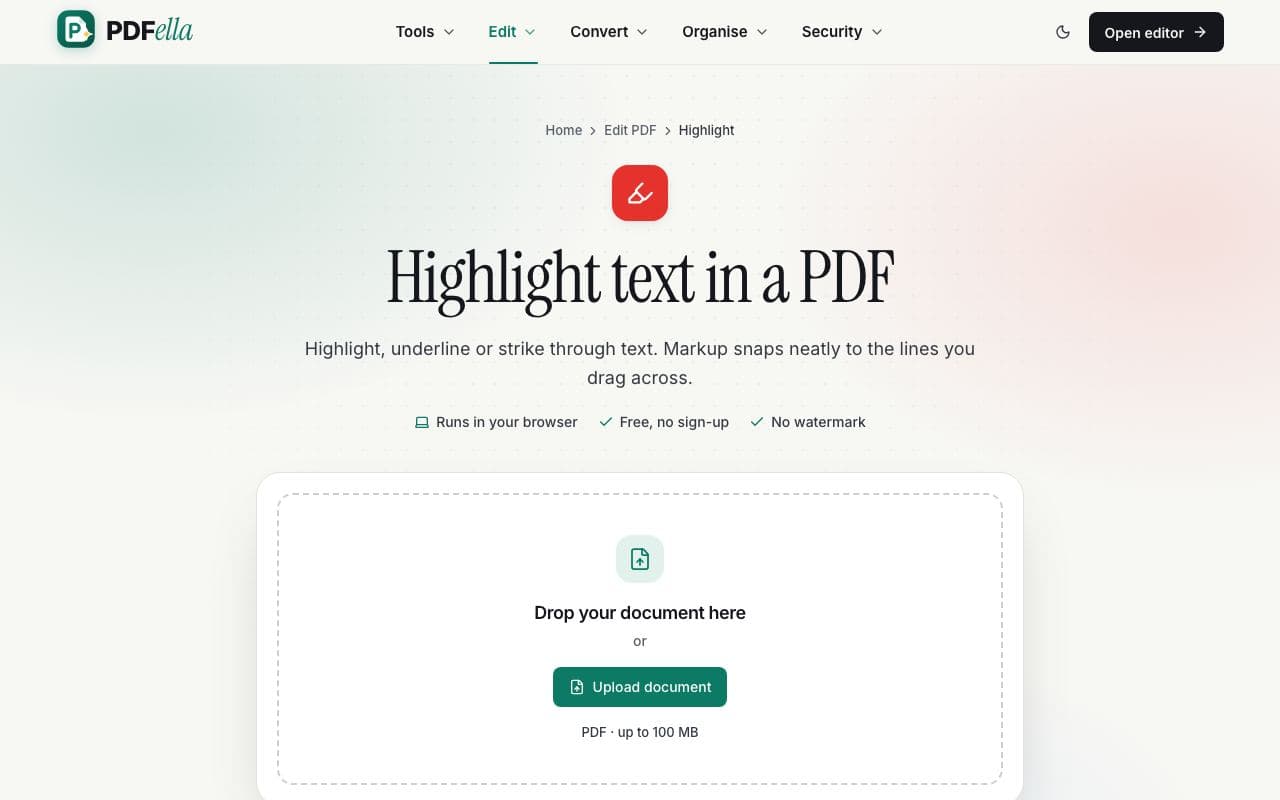
  1. 1

    Upload your PDF

    Drag your PDF onto the upload area, or click Upload document and choose it from your computer or phone. It opens instantly in the editor. No account and no installation needed.

    How to highlight text in a PDF: step 1, upload your pdf in PDFella
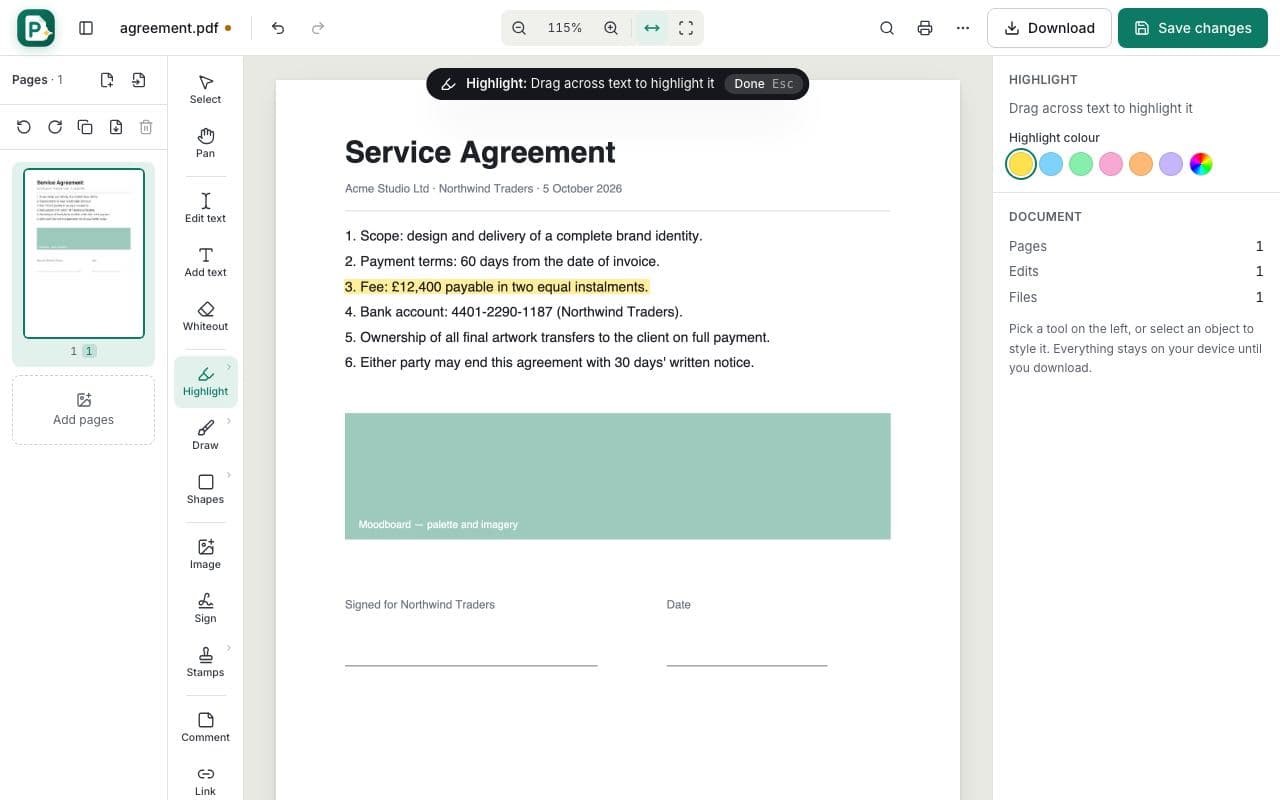
  2. 2

    Choose Highlight from Markup

    Open the Markup group in the tool bar and pick Highlight (shortcut M). Underline and Strikethrough are in the same menu.

    How to highlight text in a PDF: step 2, choose highlight from markup in PDFella
  3. 3

    Drag across the text

    Drag over the words you want to mark. The highlight snaps to each line of text, so it's always neat. Change colour and opacity in the side panel.

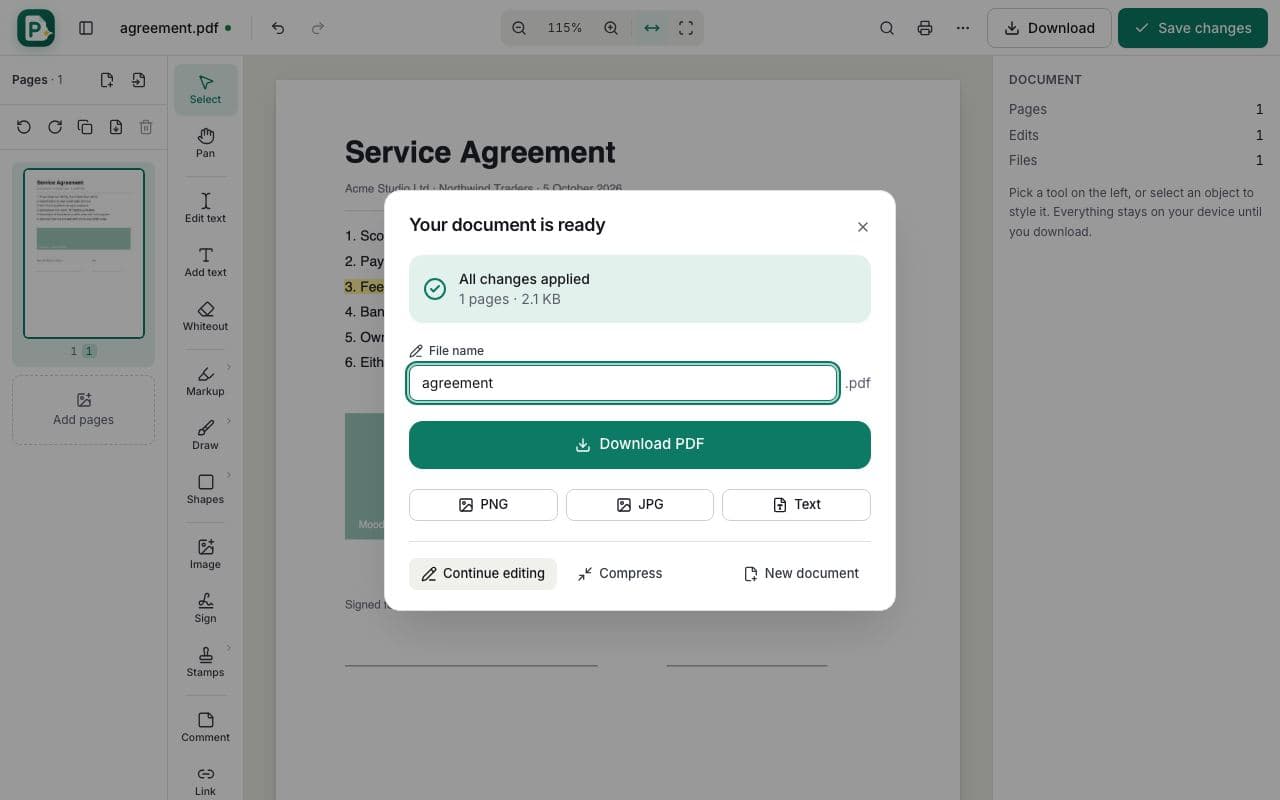
  4. 4

    Save and download

    Click Save changes, then Download PDF. Highlights are kept in every PDF reader.

    How to highlight text in a PDF: step 4, save and download in PDFella

Why PDFella

Highlight, done right

  • Snaps to text

    Highlights align to the lines you select instead of messy freehand boxes.

  • Six colours

    Yellow, blue, green, pink, orange and purple, plus adjustable opacity.

  • Underline & strike

    Mark corrections or emphasis with underline and strikethrough.

  • Readable output

    Highlights blend with the text underneath so nothing is hidden.

Highlighting scanned PDFs

Snapping works on PDFs that contain real text. If your PDF is a scan, the highlight is drawn exactly where you drag. Run OCR PDF first to make the scan's text selectable and searchable.

Reviewing documents with colleagues

Combine highlights with sticky-note comments and stamps from the Annotate tools. Comments are saved as standard PDF annotations, so your colleagues see them in Acrobat, Preview or any other reader.

Who uses Highlight?

  • Students

    Mark key passages in readings and research papers.

  • Lawyers

    Highlight clauses that need attention during contract review.

  • Editors

    Strike through and underline changes in drafts.

FAQ

Highlight: frequently asked questions

Still stuck? Email support@pdfella.example.

How do I highlight text in a PDF for free?

Open the PDF in PDFella, choose Markup → Highlight, drag across the text, then save and download.

Can I change the highlight colour?

Yes. Choose from six colours and adjust the opacity.

Can I underline or strike through text?

Yes. Underline and Strikethrough are in the same Markup menu.

Will highlights show in Adobe Acrobat?

Yes. Highlights are written into the PDF and display in any PDF reader.

Is my PDF uploaded?

No. Highlighting happens in your browser.

Can I remove a highlight?

Yes. Select it and press Delete, or undo with Ctrl/⌘ + Z.

Ready to highlight text in a PDF?

Free, private and done in seconds. No account needed.

Start now