Skip to content

Annotate PDF online

Add sticky-note comments, approval stamps, checkmarks, shapes and hyperlinks. Comments are saved as real PDF annotations.

  • Runs in your browser
  • Free, no sign-up
  • No watermark

Quick answer

How to annotate a PDF?

To annotate a PDF, open it in PDFella and use the tool bar: Comment adds sticky notes, Stamps adds Approved, Draft or Confidential stamps and checkmarks, Markup highlights text and Shapes adds arrows and boxes. Save changes and download. Comments open in any PDF reader.

Updated 5 October 2026 by the PDFella team

Key facts

Price
Free
Account
Not required
Processing
In your browser. Files aren't uploaded
Input
PDF
Output
PDF
Max file size
100 MB
Works on
Windows, macOS, Linux, iPhone, Android
Watermark
None

Step by step

How to annotate a PDF

  1. 1

    Upload your PDF

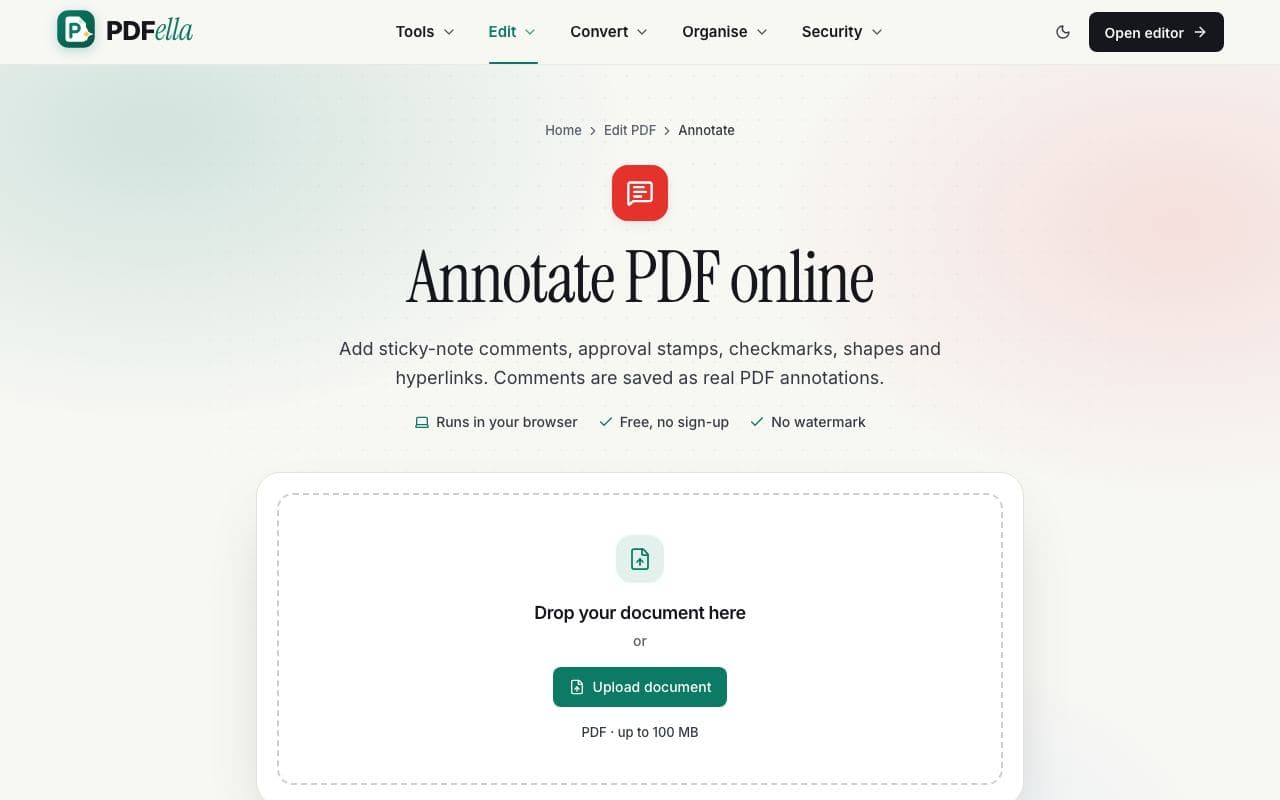
    Drag your PDF onto the upload area, or click Upload document and choose it from your computer or phone. It opens instantly in the editor. No account and no installation needed.

    How to annotate a PDF: step 1, upload your pdf in PDFella
  2. 2

    Add comments and stamps

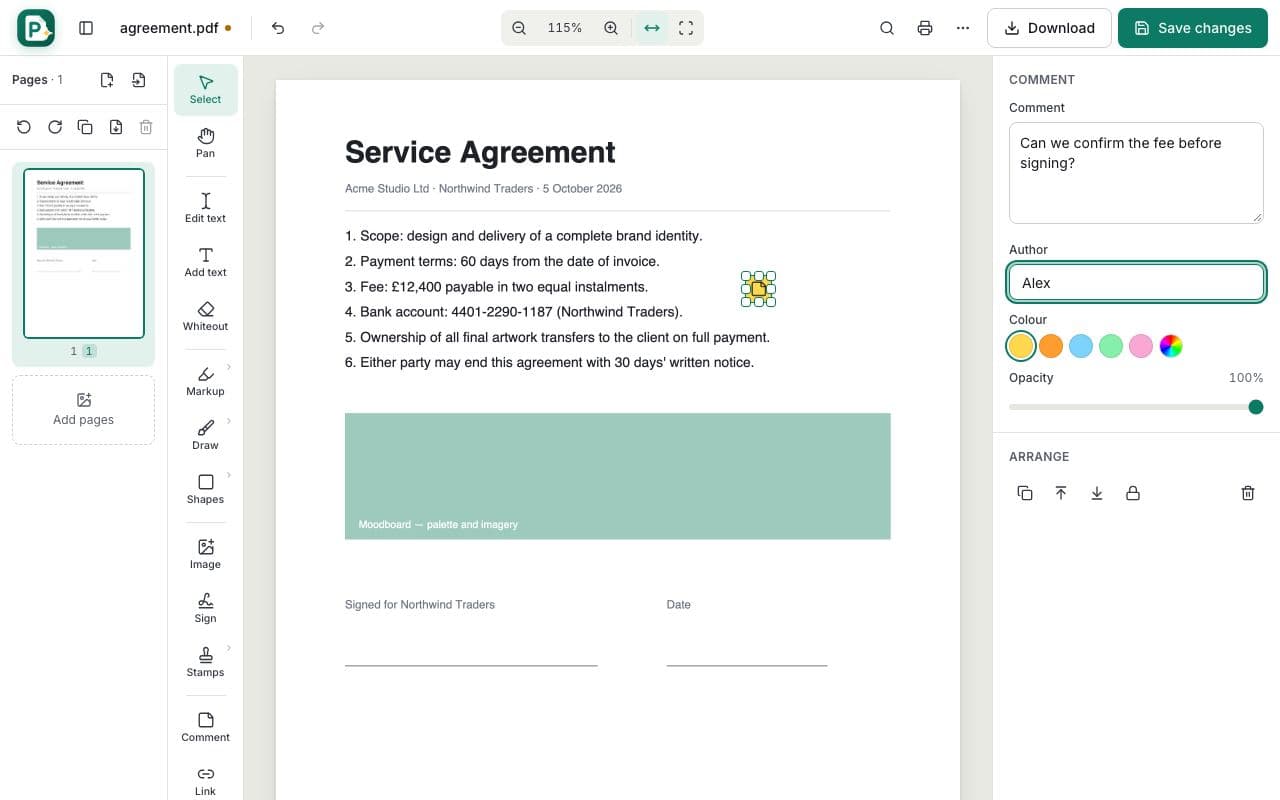
    Choose Comment and click where the note belongs, then type it in the side panel with your name. Open Stamps for Approved, Reviewed, Draft and Confidential stamps, checkmarks, crosses and stars.

    How to annotate a PDF: step 2, add comments and stamps in PDFella
  3. 3

    Mark up the content

    Use Markup to highlight or underline text, Shapes for arrows, boxes and cloud callouts, and Link to make an area clickable.

  4. 4

    Save and share

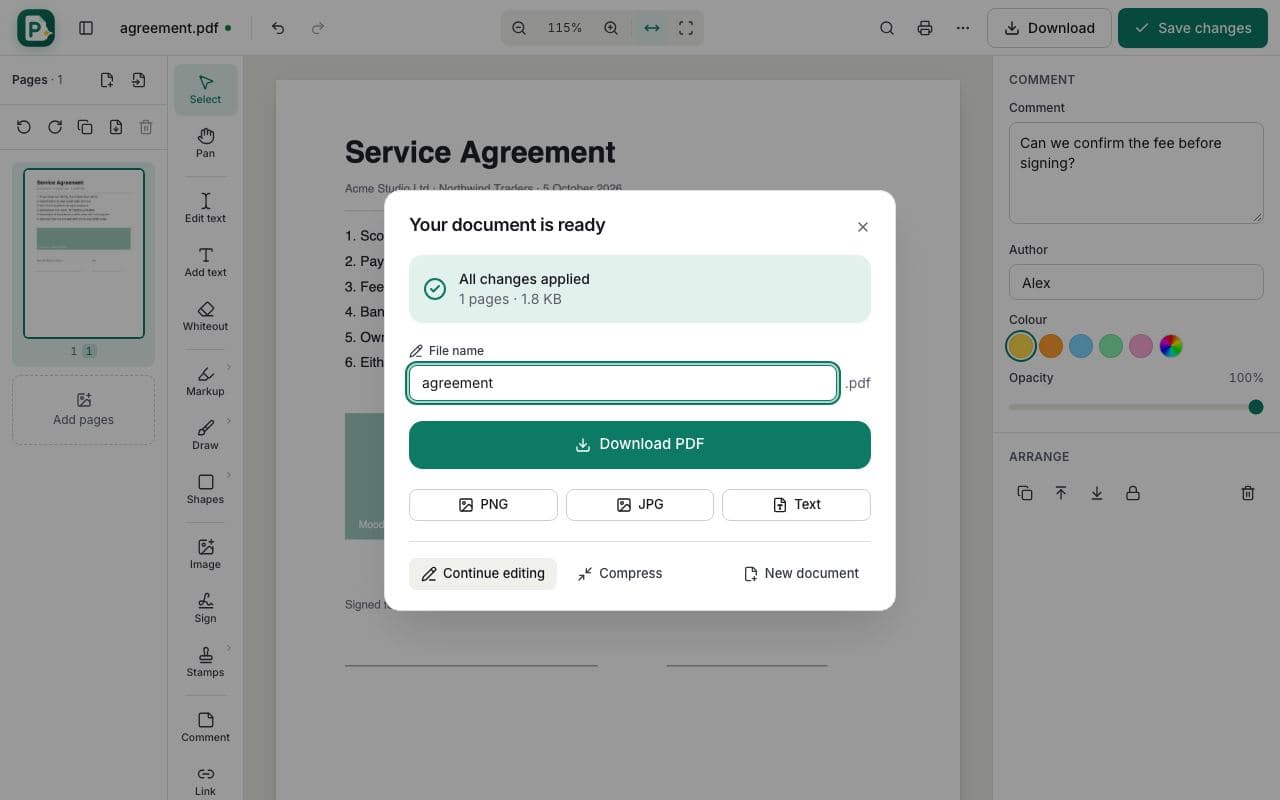
    Click Save changes and Download PDF. Your colleagues can read the comments in Acrobat, Preview, Edge or any PDF viewer.

    How to annotate a PDF: step 4, save and share in PDFella

Why PDFella

Annotate, done right

  • Standard PDF comments

    Sticky notes are saved as real PDF annotations that every reader understands.

  • Ten stamps

    Approved, Reviewed, Draft, Confidential, Final, Rejected, Paid, Received, Void and Copy.

  • Shapes & clouds

    Draw attention with arrows, ellipses, rectangles and revision clouds.

  • Clickable links

    Turn any area into a link to a website or email address.

Reviewing a document with your team

A good review combines three things: highlights to show what you mean, comments to say why, and stamps to record the decision. PDFella keeps all three on the page and saves comments in the standard PDF format, so reviewers don't need any particular software.

Approving documents with stamps

Stamps are drawn as crisp vector graphics with a slight rotation, like a rubber stamp. Edit the stamp text to create your own label, such as 'Checked by AM'.

Who uses Annotate?

  • Managers

    Approve invoices and reports with a stamp and a comment.

  • Designers

    Mark up proofs with clouds, arrows and notes.

  • Legal teams

    Comment on contract clauses during negotiation.

FAQ

Annotate: frequently asked questions

Still stuck? Email support@pdfella.example.

Will my comments show in Adobe Acrobat?

Yes. Sticky notes are saved as standard PDF text annotations.

Can I create custom stamps?

Yes. Place a stamp and edit its text and colour.

Can I add hyperlinks to a PDF?

Yes. Use the Link tool to make any area link to a web address or email.

Is annotating free?

Yes. All annotation tools are free with no account.

Is my document uploaded?

No. Annotation runs in your browser.

Can I annotate on a phone?

Yes. The editor adapts to phones and tablets with a bottom tool bar.

Ready to annotate a PDF?

Free, private and done in seconds. No account needed.

Start now