Skip to content

Add an image to a PDF

Insert PNG, JPG or WEBP images and logos, then move, resize, crop and rotate them.

  • Runs in your browser
  • Free, no sign-up
  • No watermark

Quick answer

How to add an image to a PDF?

To add an image to a PDF, open the PDF in PDFella, choose Image in the tool bar, pick a PNG, JPG or WEBP file and click on the page to place it. Drag to move, use the corners to resize, crop in the side panel, then save and download.

Updated 5 October 2026 by the PDFella team

Key facts

Price
Free
Account
Not required
Processing
In your browser. Files aren't uploaded
Input
PDF
Output
PDF
Max file size
100 MB
Works on
Windows, macOS, Linux, iPhone, Android
Watermark
None

Step by step

How to add an image to a PDF

  1. 1

    Upload your PDF

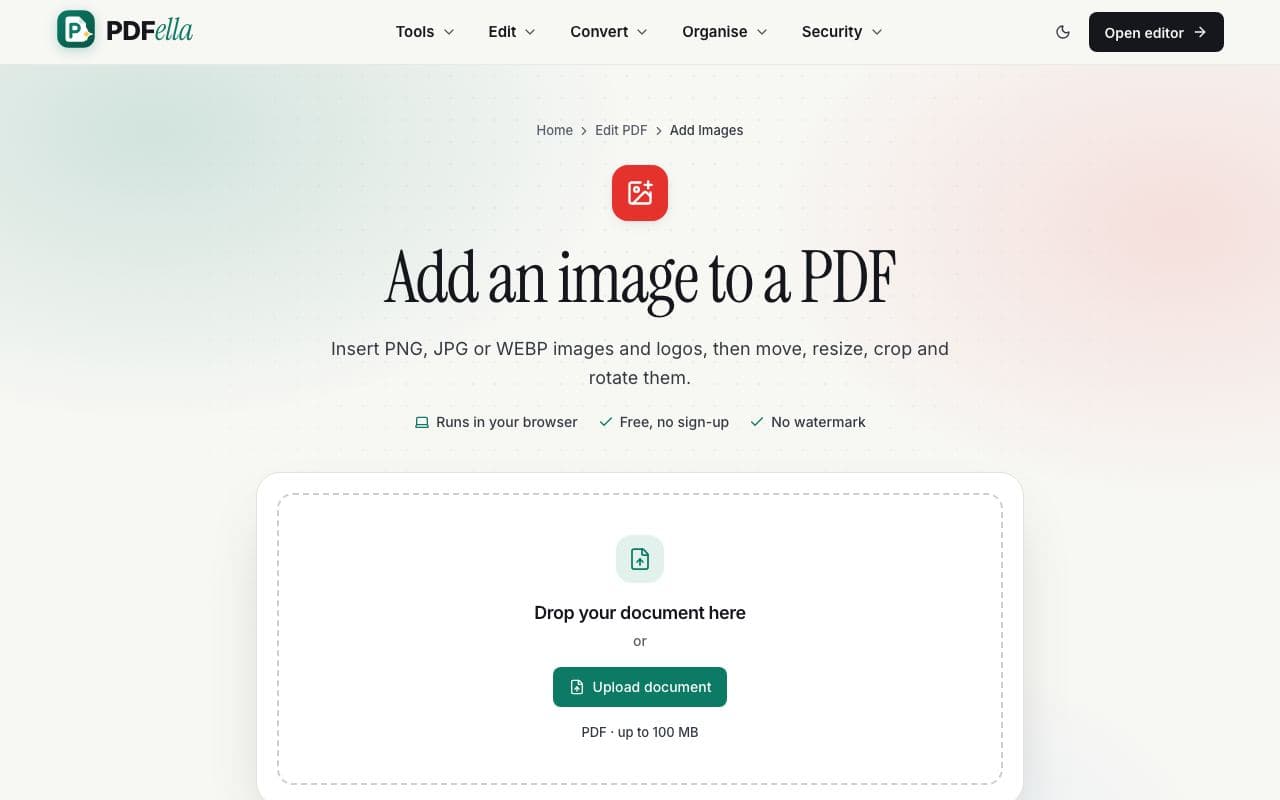
    Drag your PDF onto the upload area, or click Upload document and choose it from your computer or phone. It opens instantly in the editor. No account and no installation needed.

    How to add an image to a PDF: step 1, upload your pdf in PDFella
  2. 2

    Choose Image and pick a picture

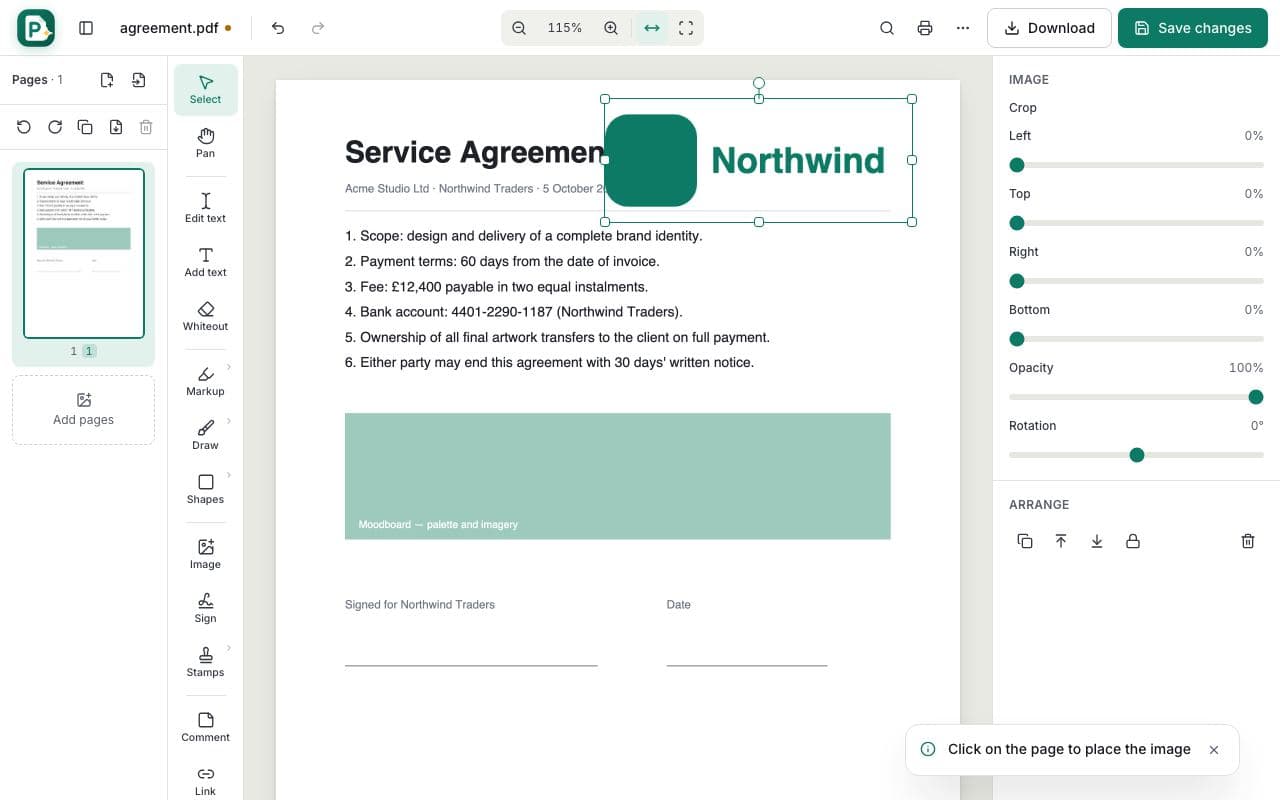
    Click Image (shortcut I) and choose a PNG, JPG or WEBP file from your device. Then click on the page where it should go.

    How to add an image to a PDF: step 2, choose image and pick a picture in PDFella
  3. 3

    Position, crop and rotate

    Drag the image to move it and pull a corner to resize while keeping its proportions. Use the crop sliders and rotation in the side panel.

  4. 4

    Save and download

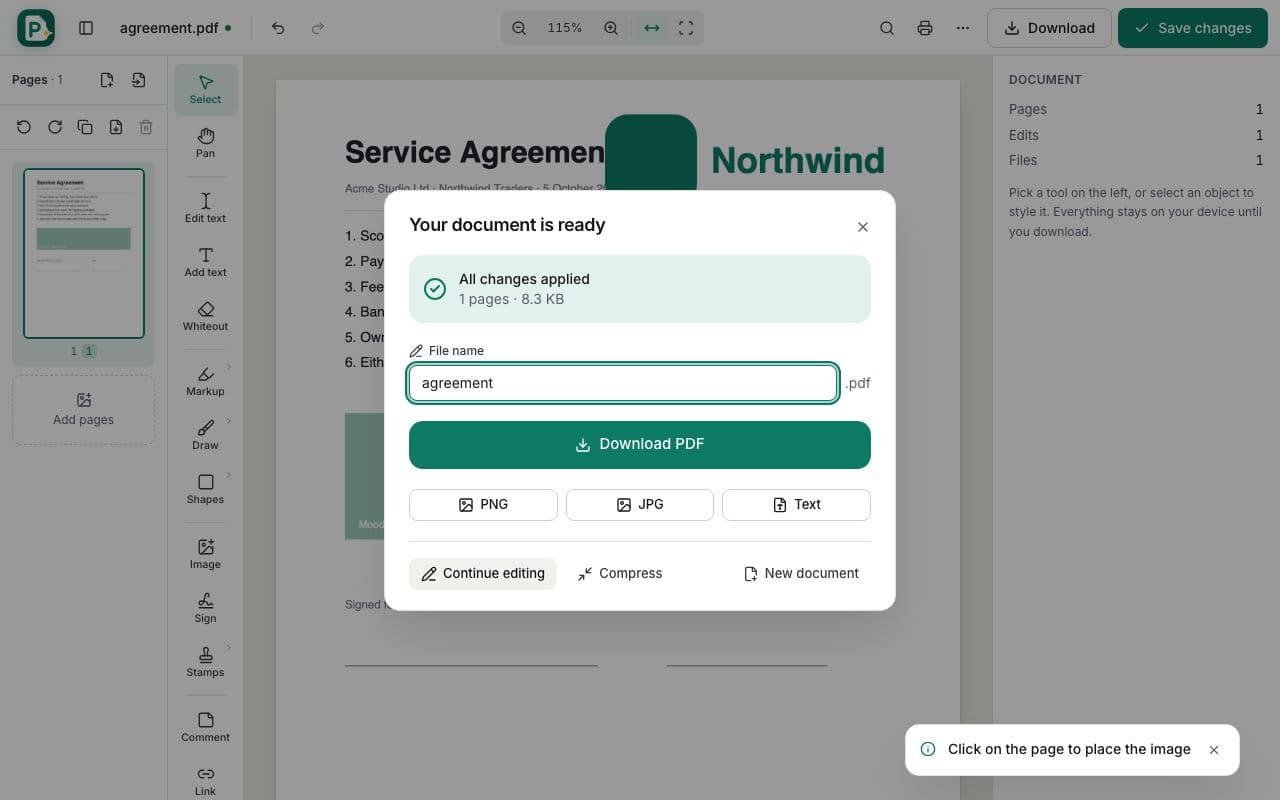
    Click Save changes, then Download PDF.

    How to add an image to a PDF: step 4, save and download in PDFella

Why PDFella

Add Images, done right

  • PNG, JPG & WEBP

    Transparent PNG logos stay transparent on the page.

  • Crop & rotate

    Trim edges and rotate to any angle without another app.

  • Keeps proportions

    Corner handles resize without stretching.

  • Sharp output

    Images are embedded at high resolution.

Adding a logo or letterhead

Use a transparent PNG for logos so they sit cleanly on the page. Place it on the first page, then copy and paste it onto other pages so it's in the same position each time.

Adding photos to reports

Large photos are resized to a sensible size automatically. If you need a whole page per image, Convert JPG to PDF and merge it in, or use Add pages in the page sidebar.

Who uses Add Images?

  • Businesses

    Add a logo to quotes and invoices.

  • Estate agents

    Insert property photos into brochures.

  • Students

    Add diagrams to assignments.

FAQ

Add Images: frequently asked questions

Still stuck? Email support@pdfella.example.

Which image formats can I add?

PNG, JPG and WEBP.

Can I crop the image?

Yes. Use the crop sliders in the side panel.

Will transparency be kept?

Yes. Transparent areas of PNG images stay transparent.

Is it free?

Yes, with no account and no watermark.

Is my file uploaded?

No. Everything happens in your browser.

Can I add an image as a new page?

Yes. Use Add pages in the page sidebar to insert an image as its own page.

Ready to add an image to a PDF?

Free, private and done in seconds. No account needed.

Start now